How To get
the money out
In my first email I revealed the only way I know to build your email list lightning fast without paid or free traffic.
Now I’m going to show you the most important part…
How to get the money out of your new list (the part everyone seems to leave out.)
All we are doing here is getting your affiliate link for the front-end offer (the same offer showing you how to build your list).
Then we replace my affiliate link with yours (so you can get paid).
Follow this plan and you don’t need any page
builders like slickfunnels because I’ve built the
sites on my own high-end hosting for you.
You’ll see exactly what I mean in a minute.
Every click is shown (with screenshots) in a specific order.
These emails go to the pages I’ve already created for you to help your new list solve their biggest problems.
(If you have any issues just reply to any of my emails.)
I want to know if there is ANYTHING that is not crystal clear to make this better for everyone.
Remember this is the only reason I’m giving you this training without charging a lot of money for it. I need your help to see if there are any “bugs” in this process.
How To get
Your Affiliate id
To get your affiliate ID you need a WarriorPlus account.
If you don’t have one it’s like setting up any online account, fill out the form, verify your email then login.
Click the button below to open the warrior plus site in a new window (If you DO NOT already have an account).
After opening the new window, start by follow the instructions below where it says: “Fill out this basic form:”
If you already have a WarriorPlus account click the link below.
Click here if you have a WPlus account
Fill out this basic form:
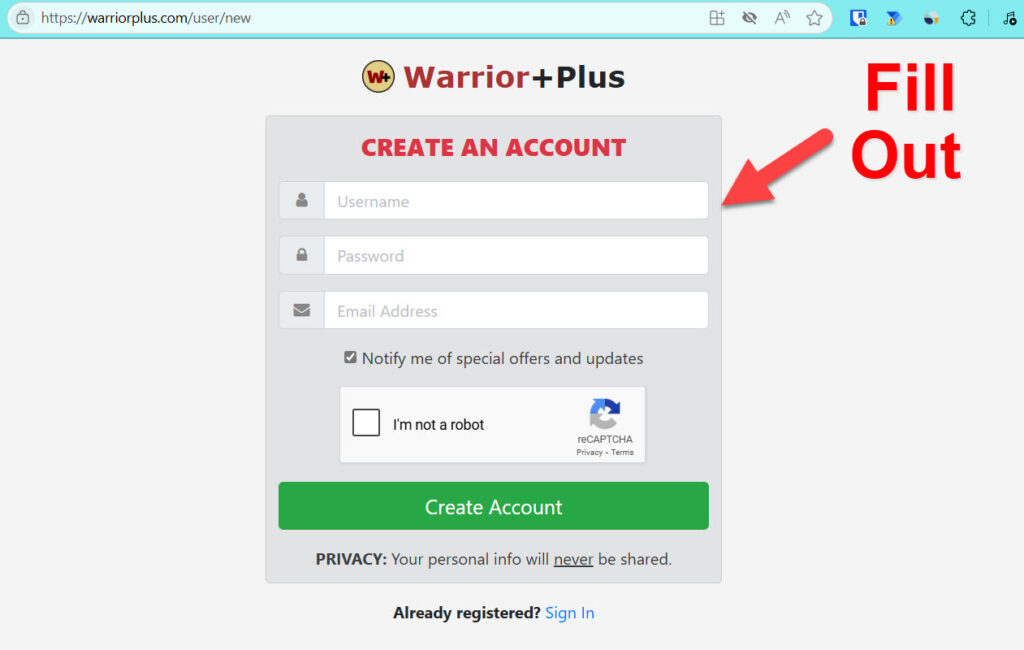
You will see this page (just go to your email)
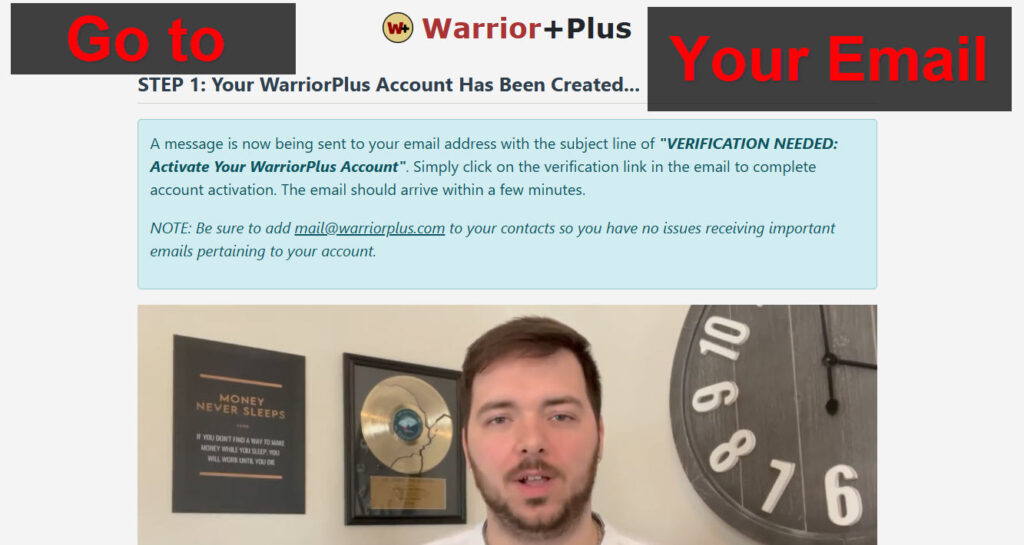
Find this email
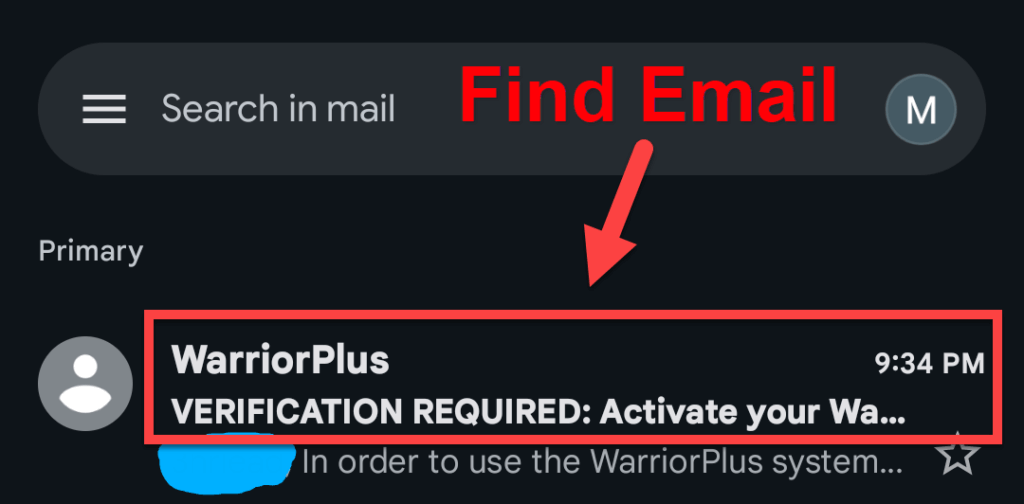
Click this link
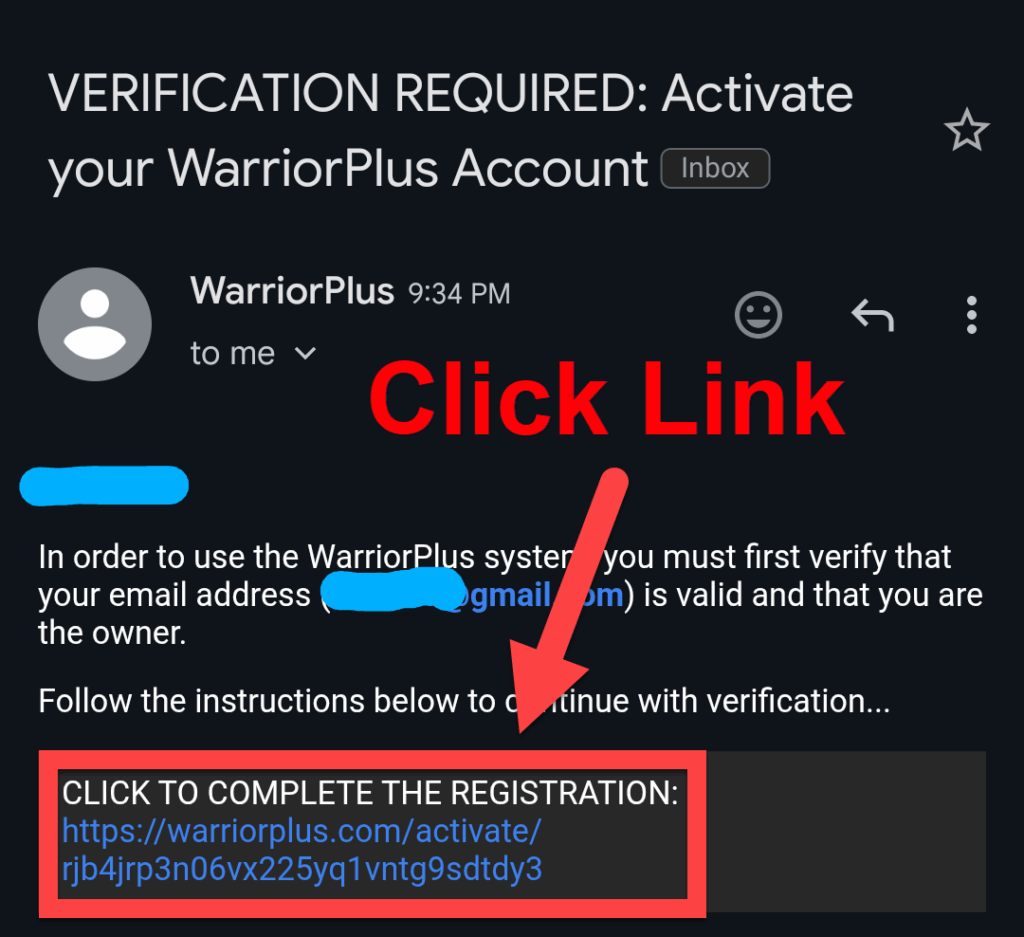
(If you already have a WarriorPlus account start here)
Login with the email and password you just created.
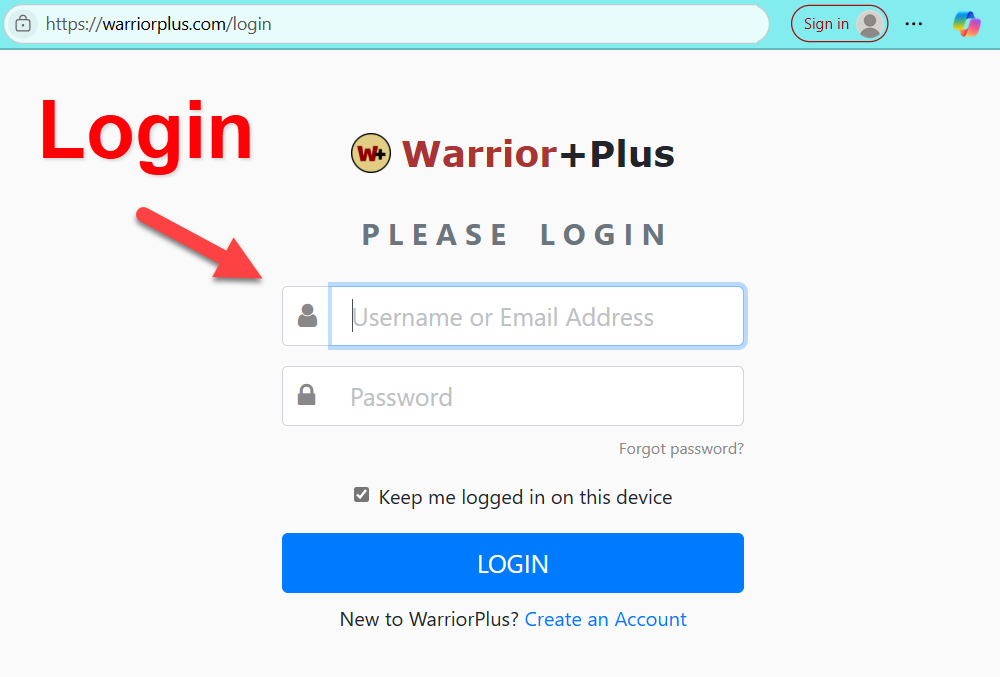
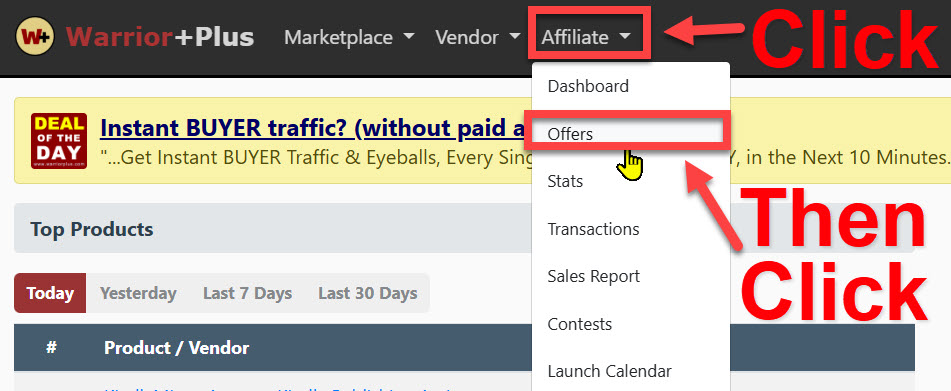
Once you are in your warrior plus account…
Click on “Affiliate” then “Offers”
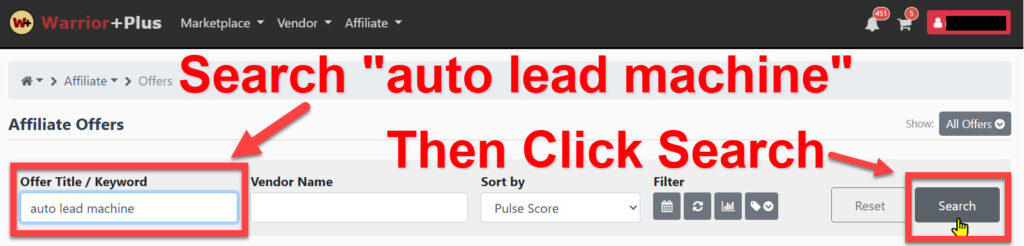
Enter “auto lead machine” under Offer/Title Keyword. Then click the Search button
Now Click “Request Approval” blue button
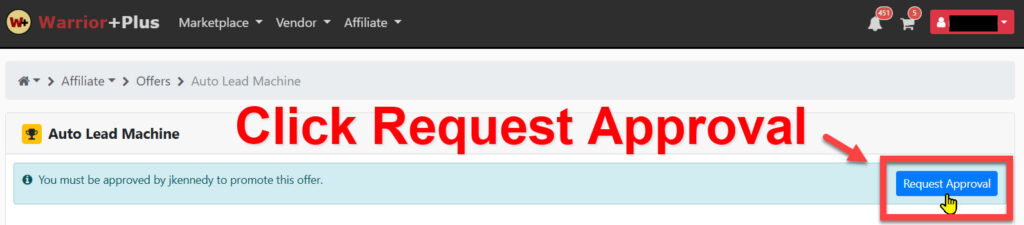
Next click “Request”

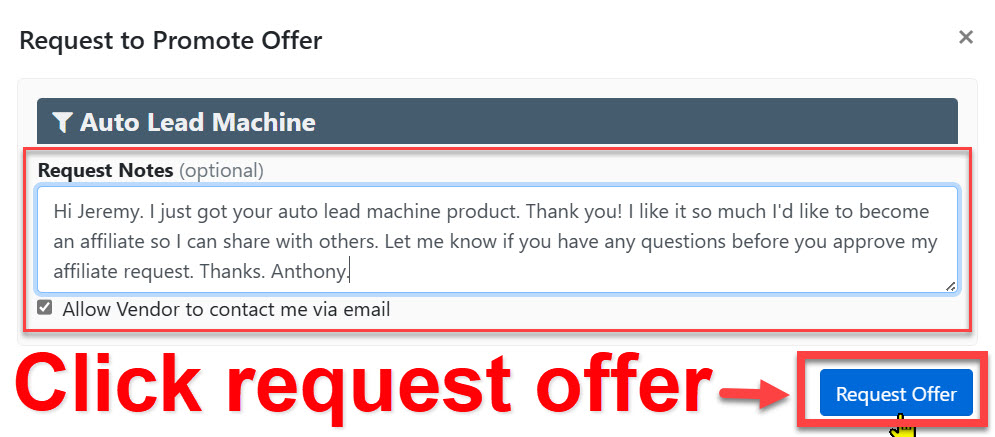
Write a note like mine but make it your own words. Then click on the “Request Offer” blue button.
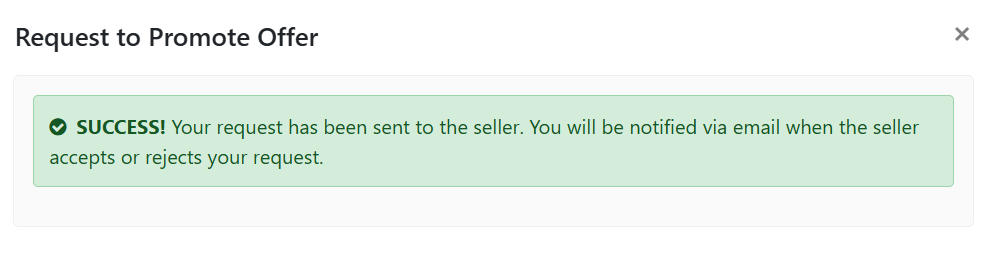
You will see this success message.
Check your email tomorrow. If you didn’t get approved, send Jeremy an email asking him to approve you.
Here is his email address:
jeremykennedyhelp@gmail.com
This offer is really hot right now he’s had over 3,000 sales.
If you don’t get approved right away just send him an email every couple days.
This next part is how you get your Affiliate ID after you are approved.
Come back here once you get the email with your approval status.
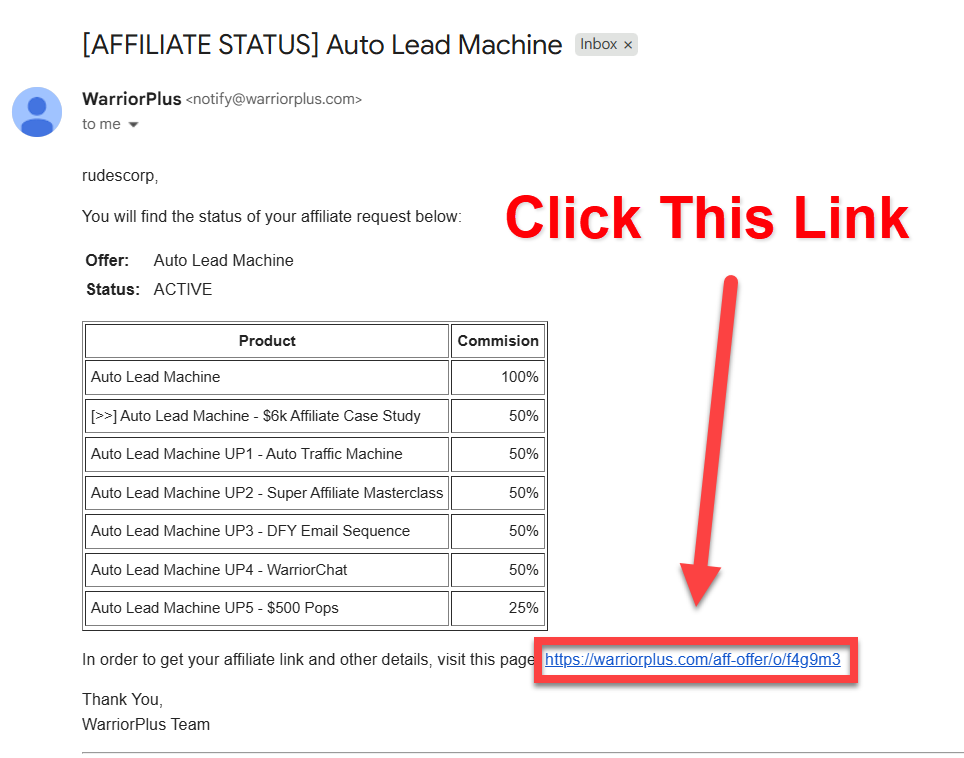
Open the email from WarriorPlus Subject:
[AFFILIATE STATUS] Auto Lead Machine
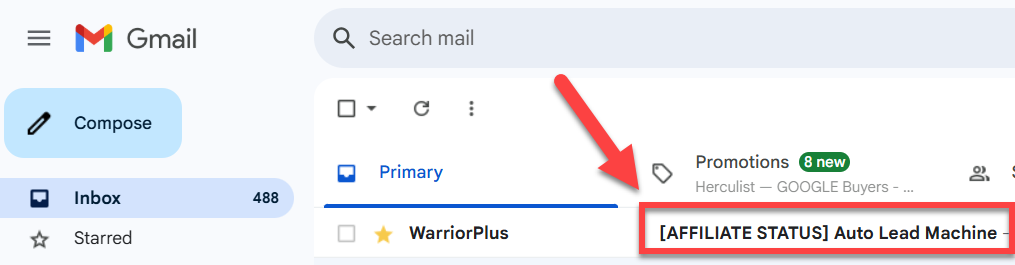
Click the link after “visit this page”
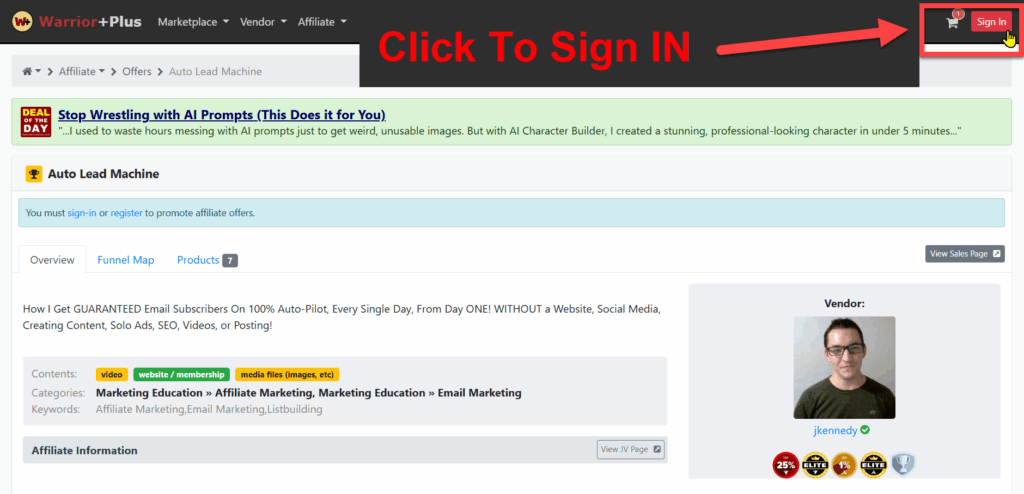
If you’re not logged in you will see the page shown below but you must sign in to see your affiliate link
Click on the red “Sign In” button in the upper right hand corner.
Login
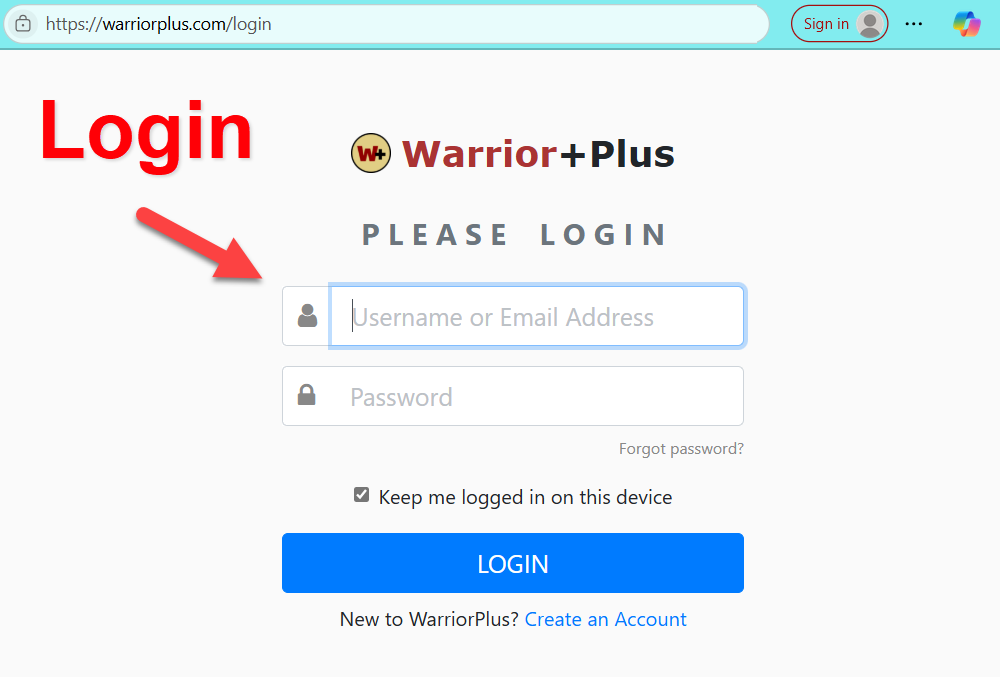
If you don’t see this page then stay logged in but go back to the email and click the link again.
(This is the easiest way to find the correct page)
Copy your affiliate link
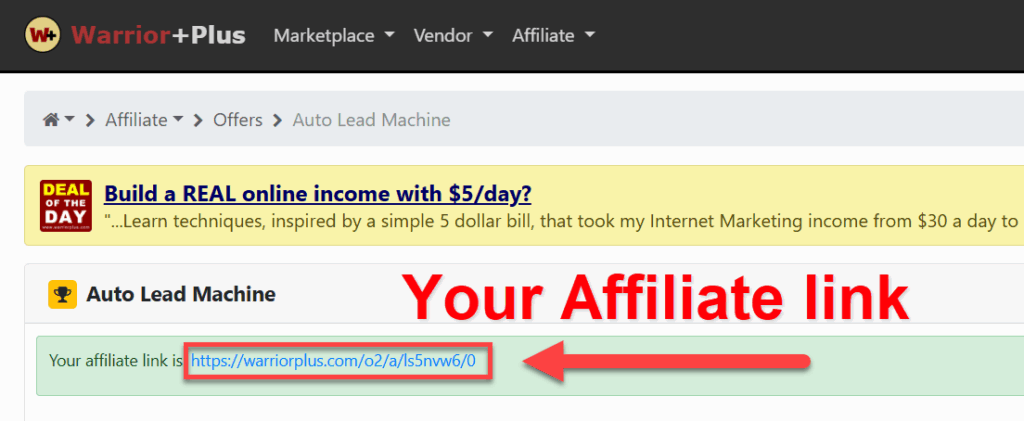
Copy the part AFTER the “o2/a”
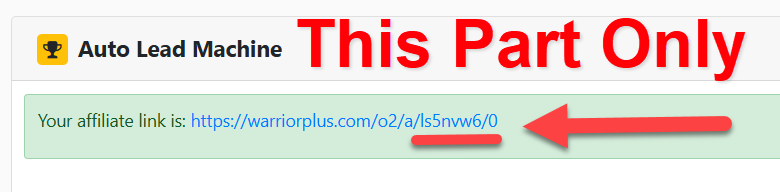
Paste this last part of the URL in your notepad (or write it down).
/ls5nvw6/0
Above is what MINE looks like.
Your unique ID will be different.
You WILL want to get the slash at the beginning /
We will be using this to replace my ID in the email we are about to load into your getresponse autoresponder.
You will NOT be using this entire affiliate link ONLY the last part with YOUR Unique ID after:
o2/a
How To Load My Private Emails
and Change to YOUR Affiliate Link
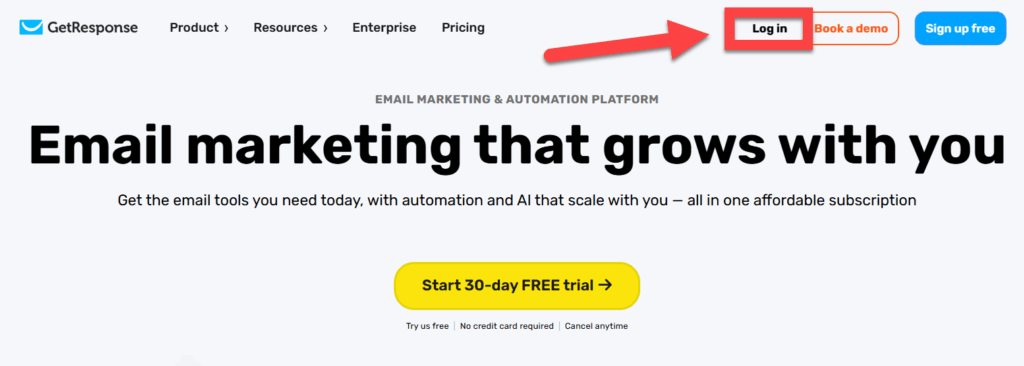
Login to Getresponse if you are not already logged in.
If you know how to use an incognito or inprivate tab on your browser it’s recommended by Getresponse. If not no big deal it worked fine when I tested without it.
Click the button ONLY if you need to login AND you already have an account.
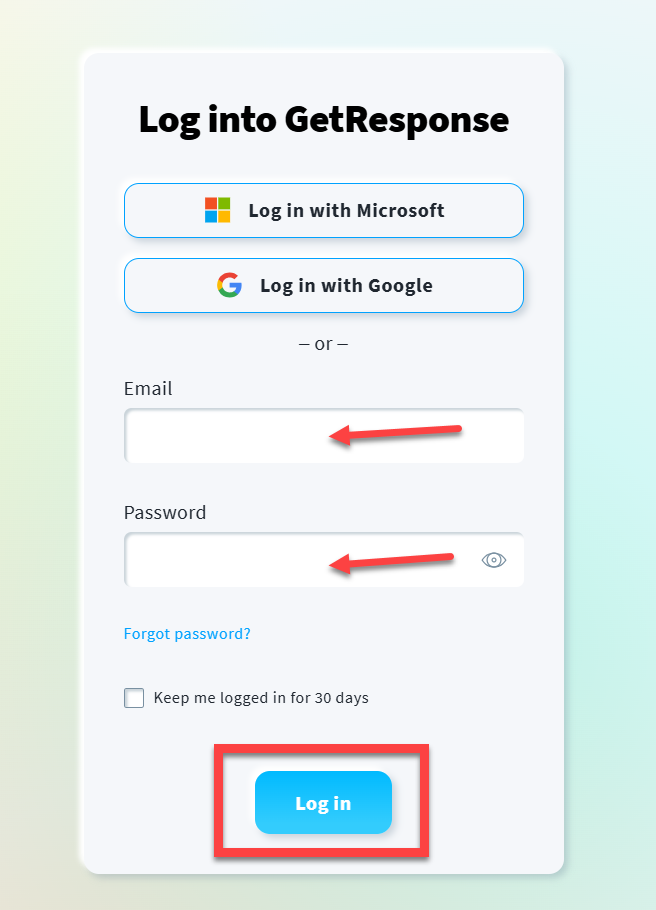
If you don’t have an account yet click this button:
Let’s create a list first so we can connect it to the emails in a moment:
Click on contacts
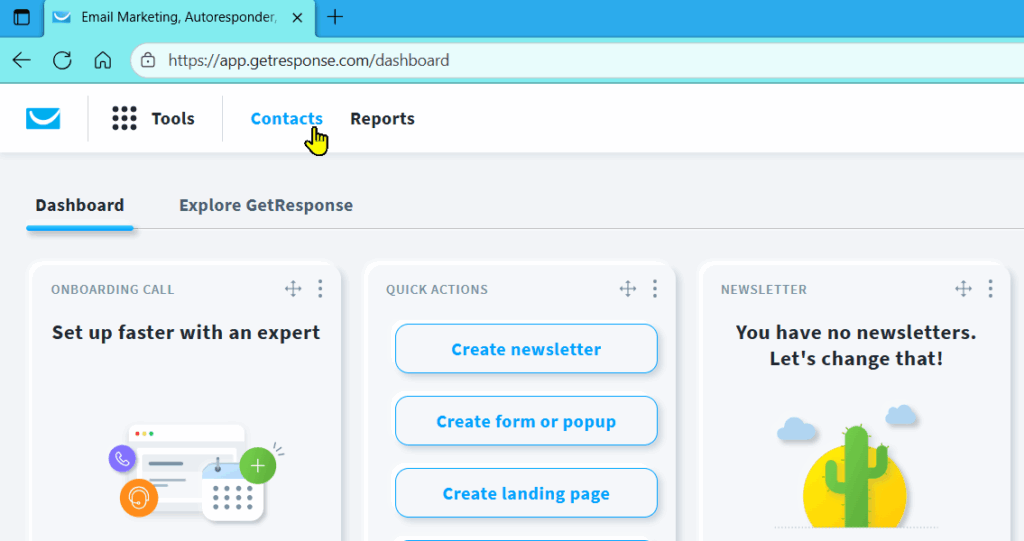
Click create list button
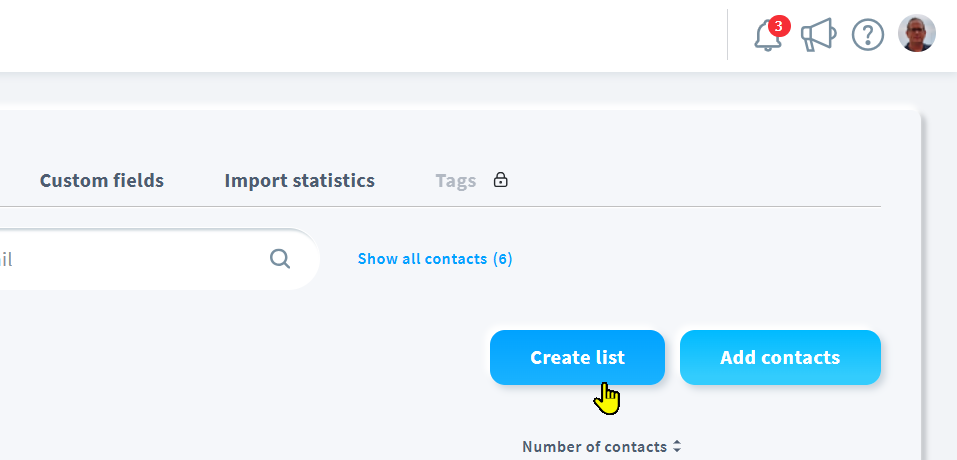
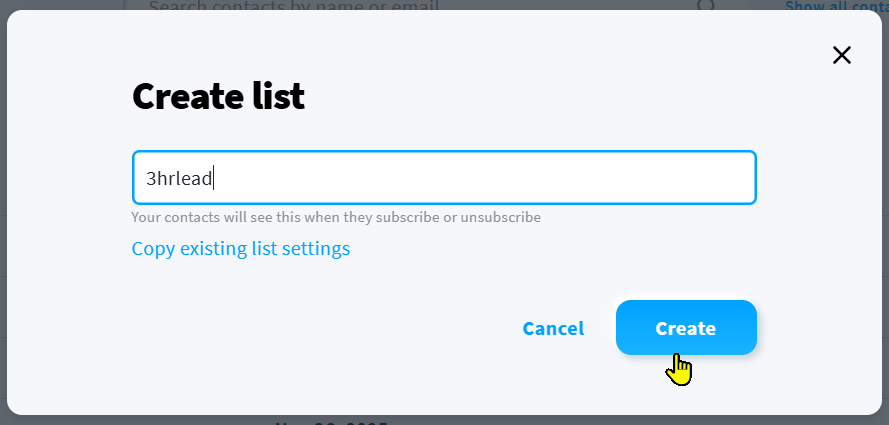
Name the list and click create
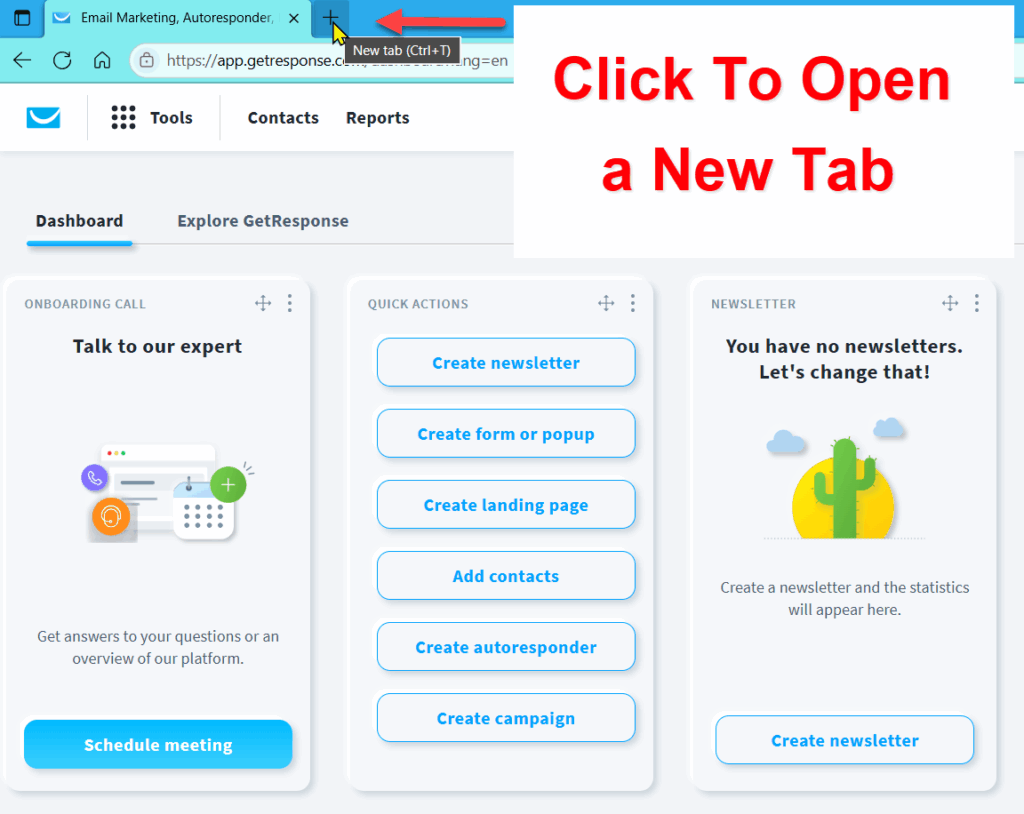
Now open a new tab in the SAME browser window:
Now copy this share code and paste it into the browser and click enter:
Highlight the code below, right click and copy.
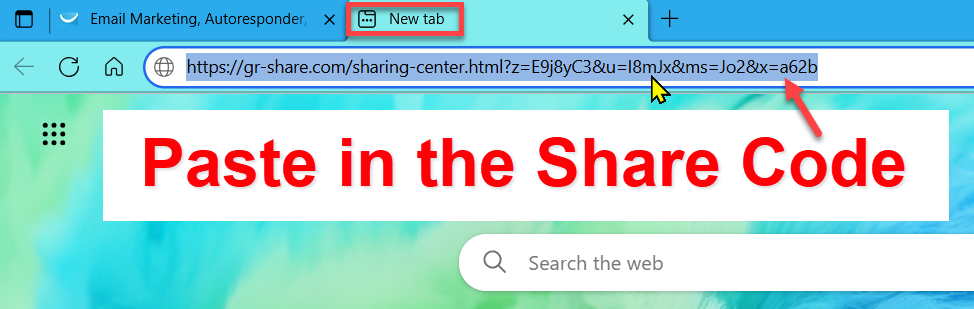
After you paste the URL in your browser window hit enter.
Now click “Proceed to import settings” blue button
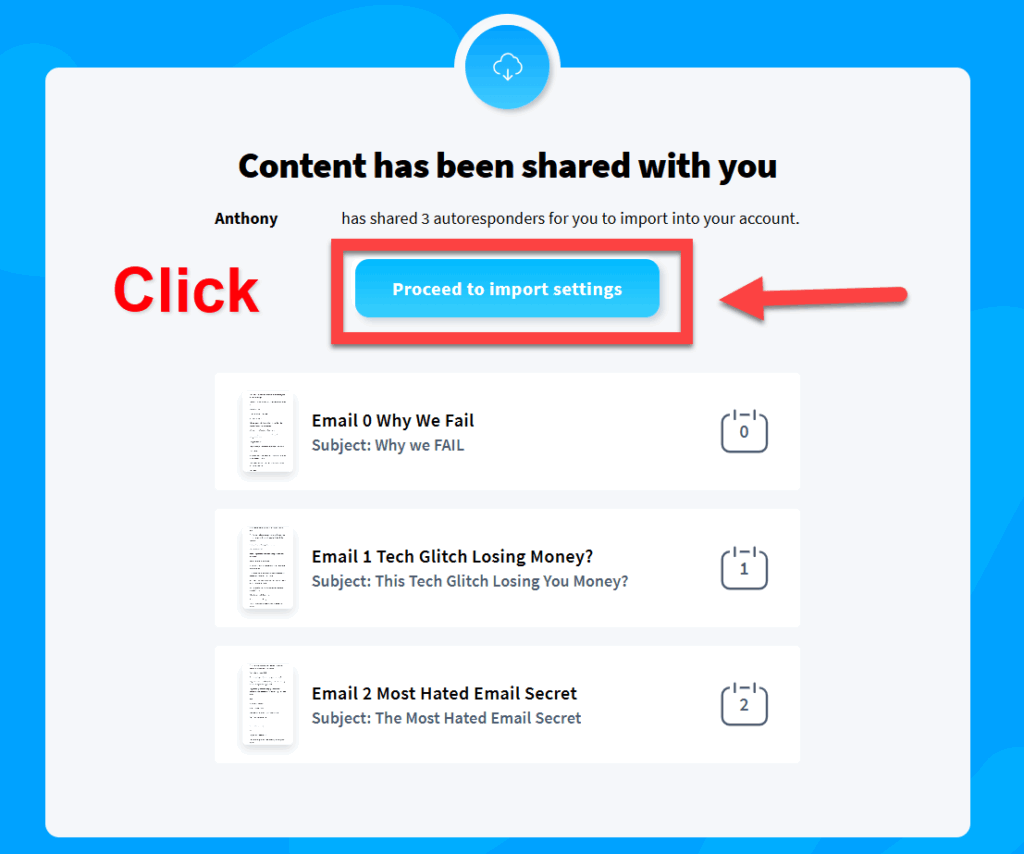
Now choose the List you just created.
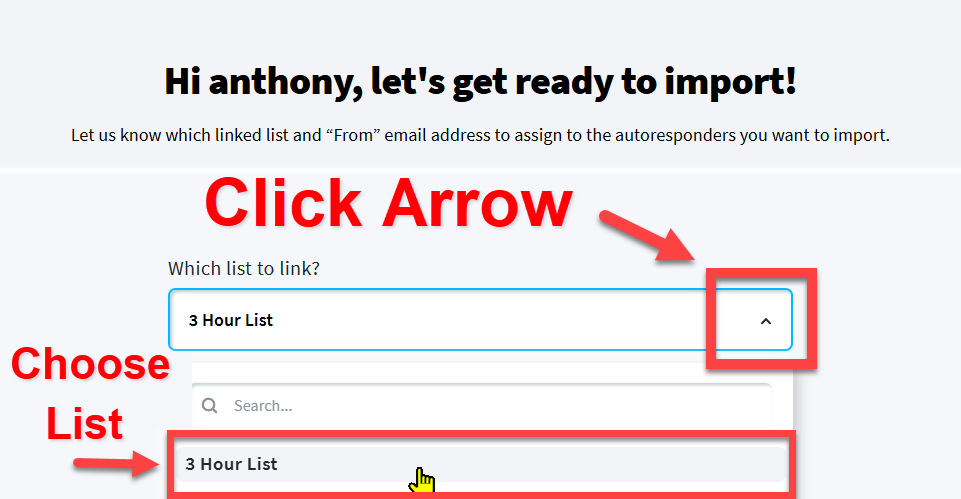
Next choose your “From” email address.
If you don’t have a pro email address set up don’t worrry I will show you how to do this tomorrow.
For now just use whatever email address you used to open the account.
If this is the first time setting up an autoresponder you will probably see your default email address and maybe a warning. Don’t worry about it we will fix it tomorrow.
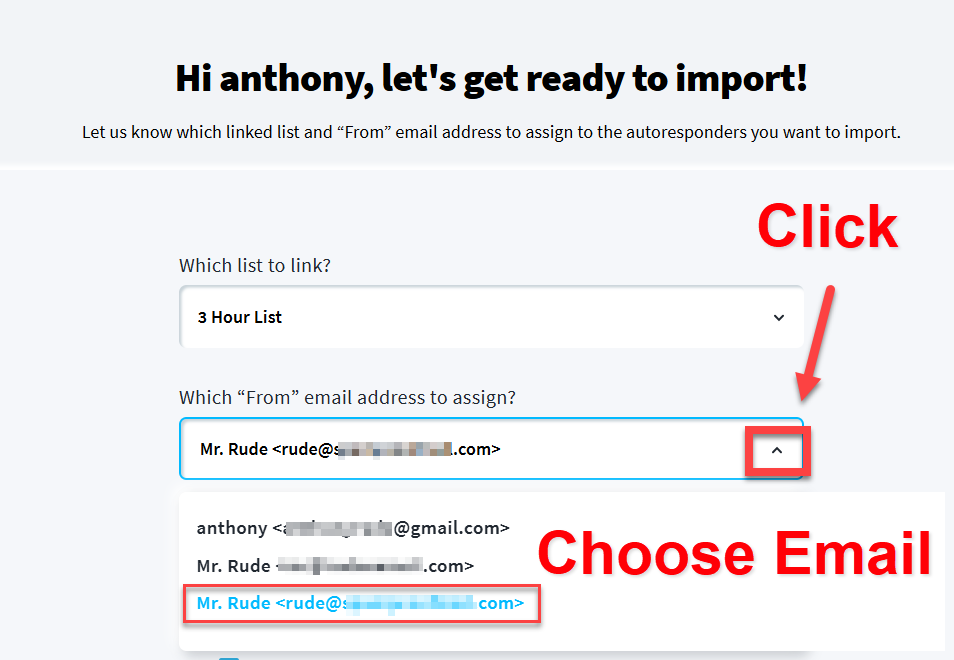
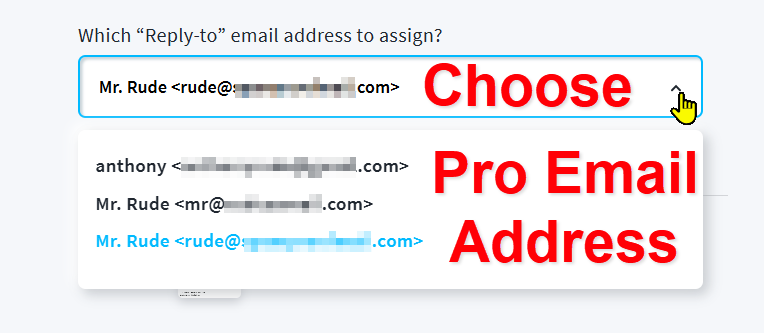
Now choose THE SAME EMAIL address for the “Repy-to” email address:
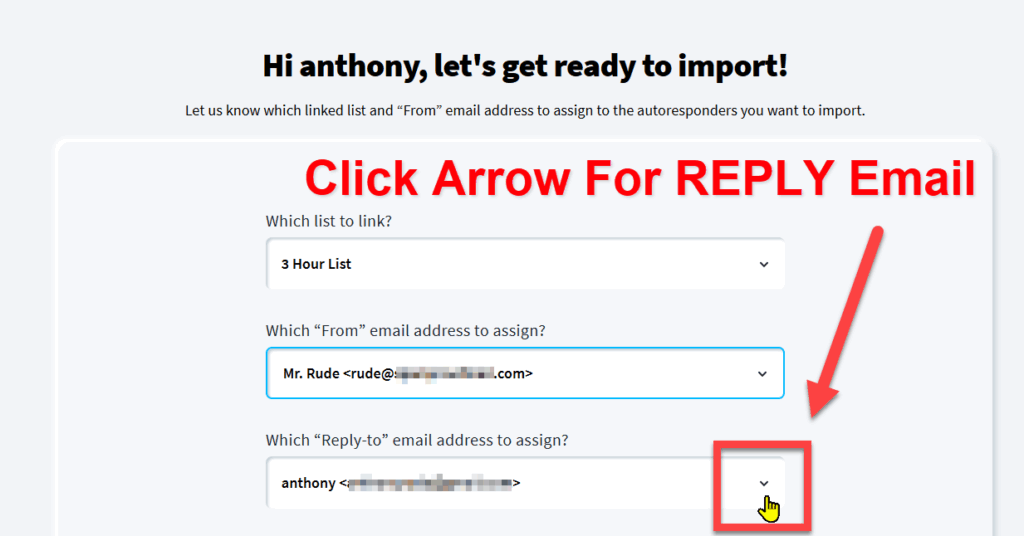
If you don’t have a pro email address again, don’t worry about this. We will fix it later. Just use whatever email address you see there.
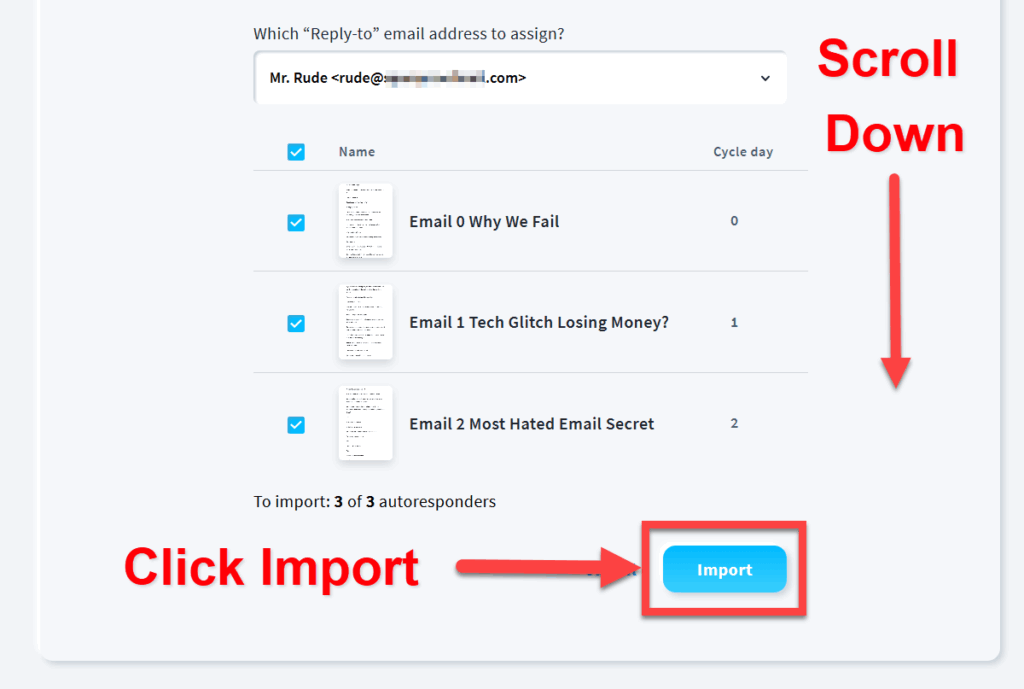
You want to scroll down if you don’t see the IMPORT blue button
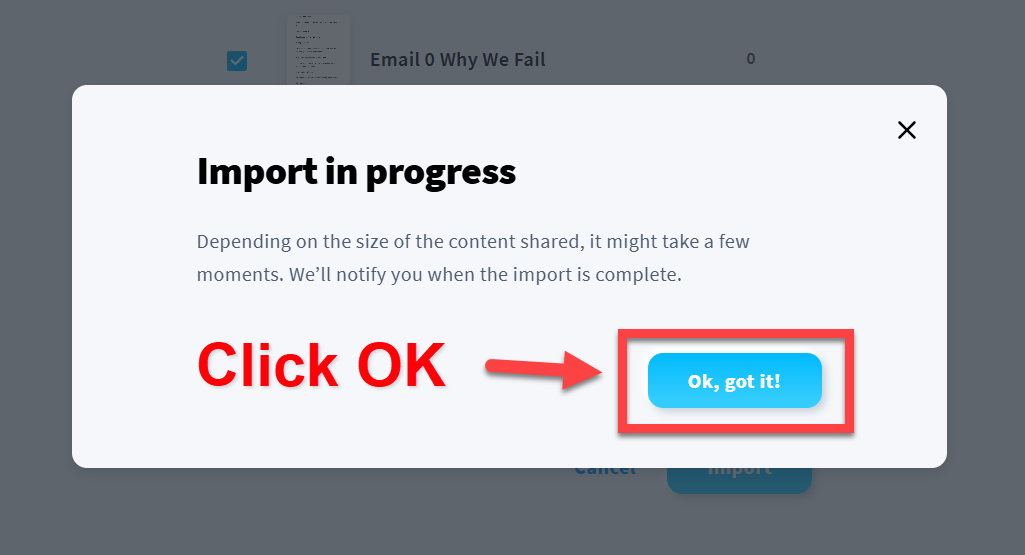
Click “OK” on the popup
You will turn the status to the emails to “ON” (for ALL 3)
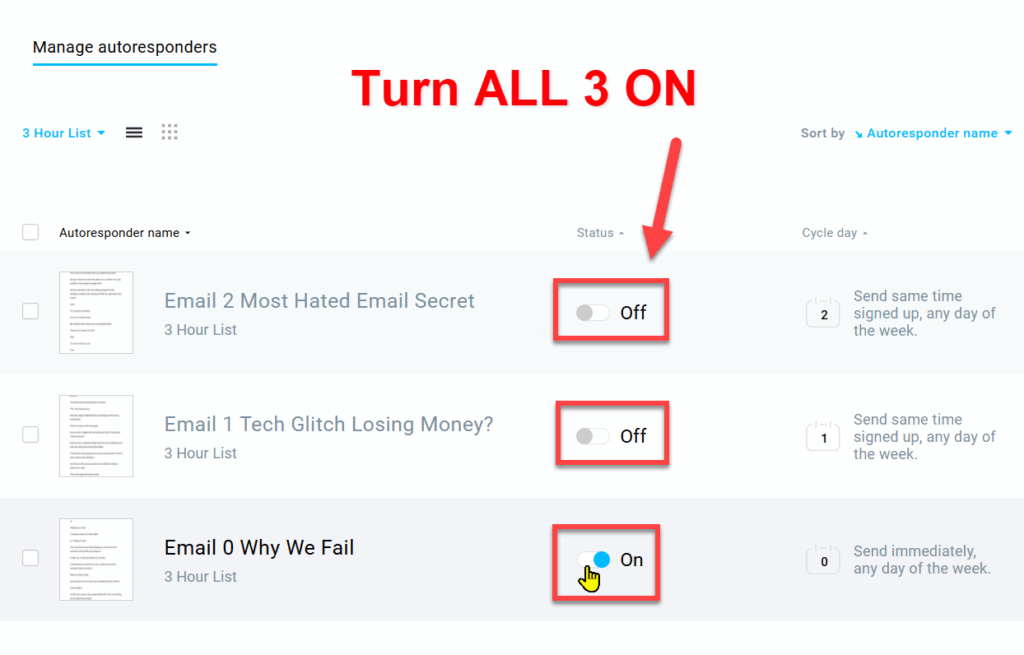
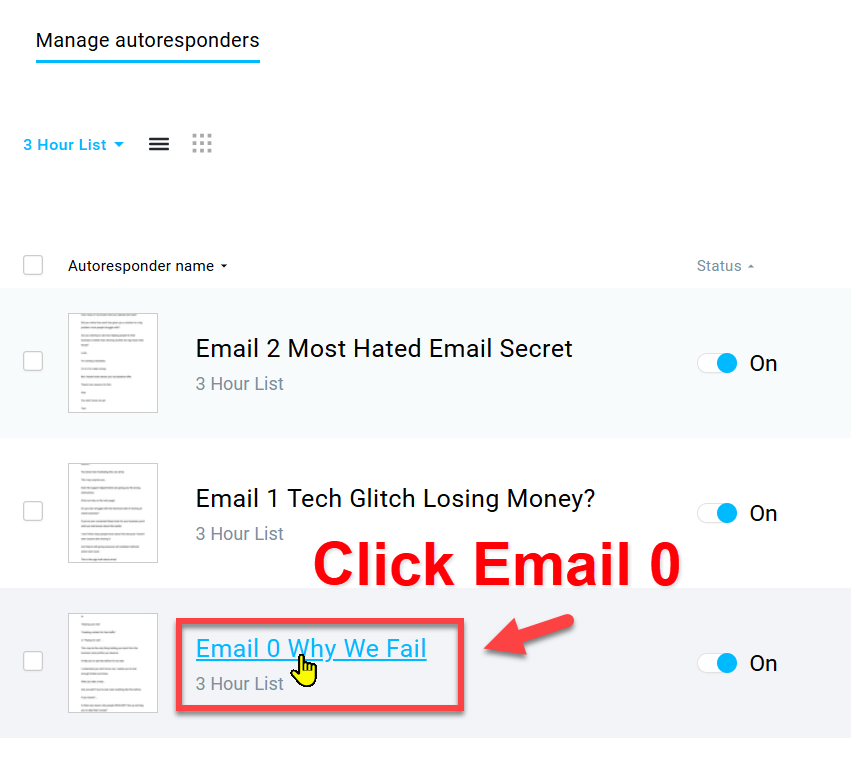
Find the last email or email 0 and click on it. (Make sure all emails say “on” for the status on this page)
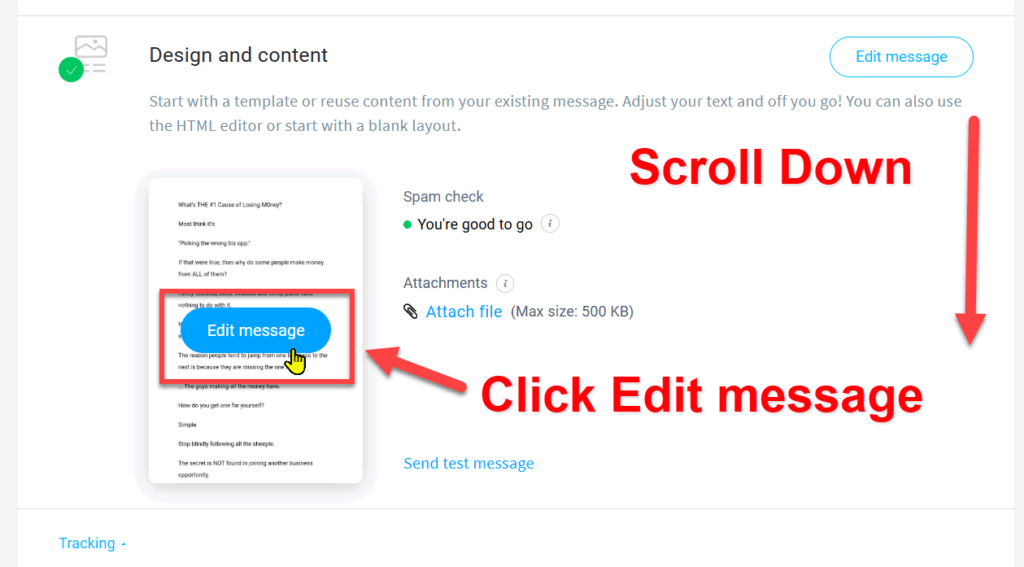
You need to scroll down the page and click Edit Message
Scroll down on the email editor to find where it says “Read my letter…”
Place your cursor at the end, left click and hold then drag it across until the whole sentence is highlighted like you see in the picture
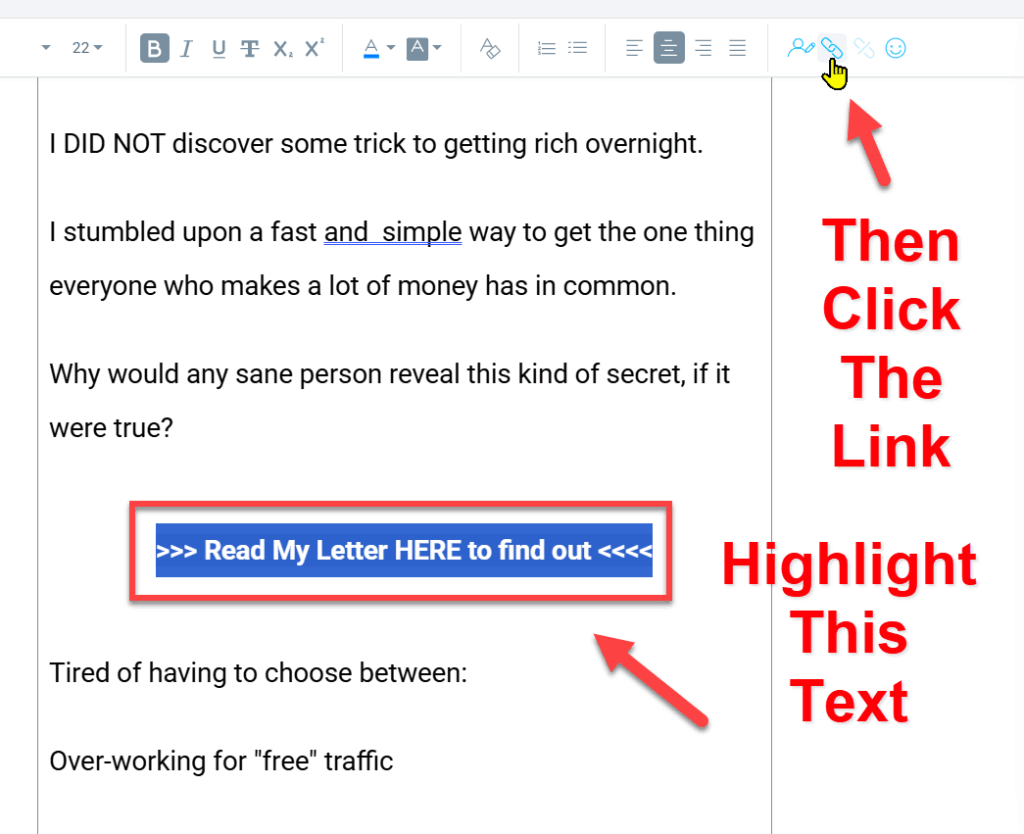
After it’s highlighted then click on the little blue link icon near the top of the page (this will open a popup window)
Now you are going to enter (or paste) the private link I made for you by putting YOUR affiliate ID at the end.
You will need to take your ID you just got from WarriorPlus and add it to the special Link below
https://arudes.com/3hrleads/
https://arudes.com/3hrleads/YOURaffiliateID
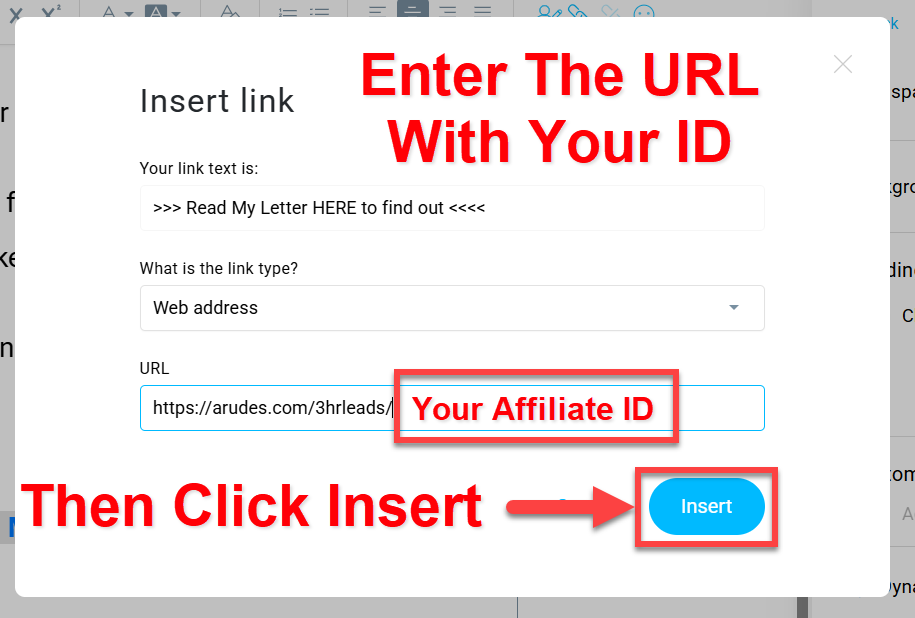
Then click “INSERT”
Scroll back up to the top of the page and
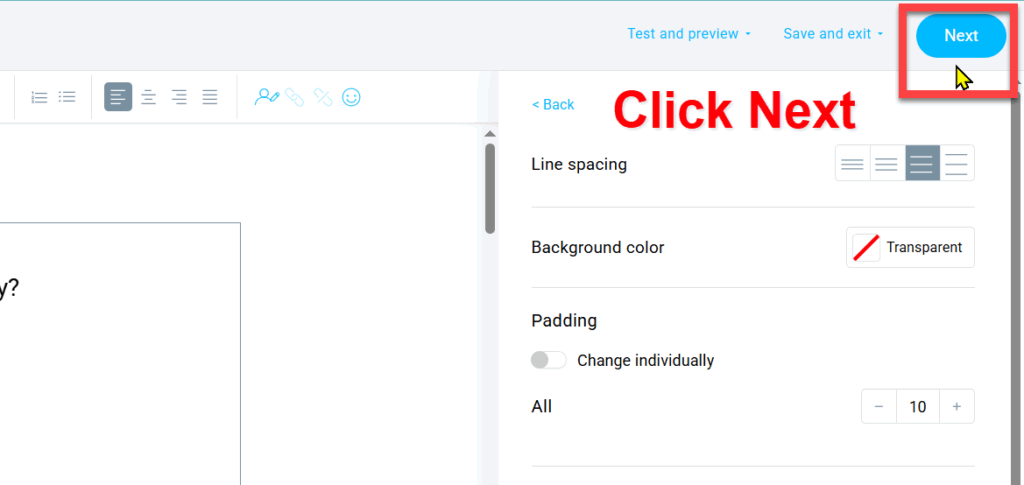
Click NEXT in the upper right hand corner.
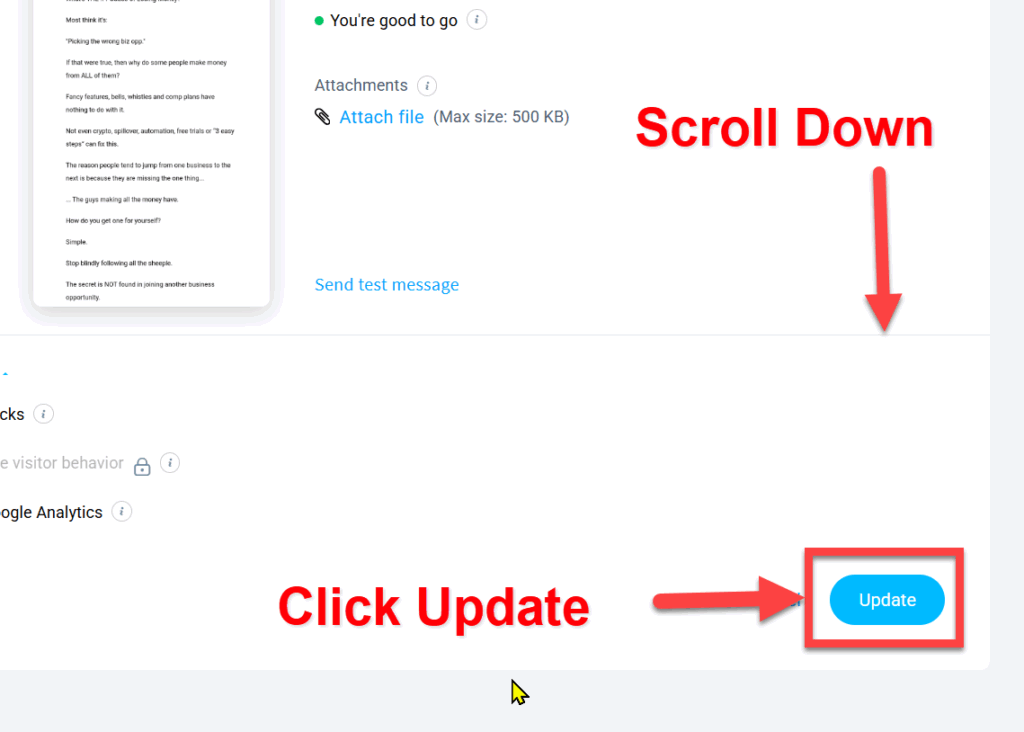
Scroll down on the next page and look for the “Update” blue button (click it)
Now your emails are loaded with your link so you can get paid.
Don’t be fooled into thinking these emails and pages are like those they give to every business opportunity seeker.
You could have the greatest opportunity in the world but if your MESSAGE doesn’t GRAB your readers attention AND build extreme curiosity it won’t bring you a lot of sales.
This is why most people LOSE money trying to make money online.
They use the same lame messages they give to EVERYONE.
Why would anyone want to join YOU over any of the other affiliates if you are pushing the exact same message?
There is zero incentive for them to join you.
When you are the only way they can get the rights to use our powerful 100% unique new approach…
You finally have the unfair advantage… even if you are starting with a list of zero subscribers because you are helping solve the biggest problems every online entrepreneur faces
This is why they will line up and beg to get your link over everyone else’s.
This is the master strategy I learned from my mentors.
But now it’s 100 times more powerful because we don’t sell a business opportunity on the front end.
Instead we solve the biggest problem everyone starting out runs into:
Traffic and building an email list.
Here’s the truth…
You are NOT going to get rich offering a 10 dollar product on the front end.
This is why I showed you how we get the really big money with our private high-ticket business.
If you can’t afford to join us right now don’t let that stop you from building your list and gaining the confidence you get when you see this actually working for you.
Now let me know if there is anything you have any questions about or if anything is unclear or missing.
I will create a page with your questions and the answers.
This way we can all refer anyone with questions to this page.
This is why I need your help with this and why you won’t be charged for this training or for the rights to use these emails and my website.
Mr. Rude
PS – Look for my email tomorrow and we will show you the easy way to set up a professional email address without any of the complicated settings. This way your emails won’t end up in spam. Spam = ZERO MONEY.
How To get the
money out
In my first email I revealed the only way I know to build your email list lightning fast without paid or free traffic.
Now I’m going to show you the most important part…
How to get the money out of your new list (the part everyone seems to leave out.)
All we are doing here is getting your affiliate link for the front-end offer (the same offer showing you how to build your list).
Then we replace my affiliate link with yours (so you can get paid).
Follow this plan and you don’t need
any page builders like ‘slickfunnels’
because I’ve built the sites on my
high-end hosting for you.
You’ll see exactly what I mean in a minute.
Every click is shown (with screenshots) in a specific order.
These emails go to the pages I’ve already created for you to help your new list solve their biggest problems.
(If you have any issues just reply to any of my emails.)
I want to know if there is ANYTHING that is not crystal clear to make this better for everyone.
Remember this is the only reason I’m giving you this training without charging a lot of money for it. I need your help to see if there are any “bugs” in this process.
How To get
Your Affiliate id
To get your affiliate ID you need a WarriorPlus account.
If you don’t have one it’s like setting up any online account, fill out the form, verify your email then login.
Click the button below to open the warrior plus site in a new window (If you DO NOT already have an account).
After opening the new window, start by follow the instructions below where it says: “Fill out this basic form:”
If you already have a WarriorPlus account click the link below.
Tap here if you have a WPlus account
Fill out this basic form:
You will see this page
(just go to your email)
Find this email
Click this link
(If you already have a WarriorPlus account start here)
Login with the email and password you just created.
Once you are in your warrior plus account…
Click on “Affiliate” then “Offers”
Enter “auto lead machine” under Offer/Title Keyword. Then click the Search button
Now Click “Request Approval” blue button
Next click “Request”
Write a note like mine but make it your own words. Then click on the “Request Offer” blue button.
You will see this success message.
Check your email tomorrow. If you didn’t get approved, send Jeremy an email asking him to approve you.
Here is his email address:
jeremykennedyhelp@gmail.com
This offer is really hot right now he’s had over 3,000 sales.
If you don’t get approved right away just send him an email every couple days.
This next part is how you get your Affiliate ID after you are approved.
Come back here once you get the email with your approval status.
Open the email from WarriorPlus Subject:
[AFFILIATE STATUS] Auto Lead Machine
Click the link after “visit this page”
If you’re not logged in you will see the page shown below but you must sign in to see your affiliate link
Click on the red “Sign In” button in the upper right hand corner.
Login
If you don’t see this page then stay logged in but go back to the email and click the link again.
(This is the easiest way to
find the correct page)
Copy your affiliate link
Copy the part AFTER the “o2/a”
Paste this last part of the URL in your notepad (or write it down).
/ls5nvw6/0
Above is what MINE looks like.
Your unique ID will be different.
You WILL want to get the slash at the beginning /
We will be using this to replace my ID in the email we are about to load into your getresponse autoresponder.
You will NOT be using this entire affiliate link ONLY the last part with YOUR Unique ID after:
o2/a
How To Load My Private Emails
and Change to
YOUR Affiliate Link
Login to Getresponse if you are not already logged in.
If you know how to use an incognito or inprivate tab on your browser it’s recommended by GetResponse. If not, no big deal it worked fine when I tested without it.
Click the button below ONLY if you need to login AND you already have an account.
If you don’t have an account yet click this button:
Let’s create a list first so we can connect it to the emails in a moment:
Click on contacts
Click create list button
Name the list and click create
Now open a new tab in the SAME browser window:
Now copy this share code and paste it into the browser and click enter:
Highlight the code below, right click and copy.
After you paste the URL in your browser window hit enter.
Now click “Proceed to import settings” blue button
Now choose the List you just created.
Next choose your “From” email address.
If you don’t have a pro email address set up don’t worrry I will show you how to do this tomorrow.
For now just use whatever email address you used to open the account.
If this is the first time setting up an autoresponder you will probably see your default email address and maybe a warning. Don’t worry about it we will fix it tomorrow.
Now choose THE SAME EMAIL address for the “Repy-to” email address:
If you don’t have a pro email address again, don’t worry about this. We will fix it later. Just use whatever email address you see there.
You want to scroll down if you don’t see the IMPORT blue button
Click “OK” on the popup
You will turn the status to the emails to “ON” (for ALL 3)
Find the last email or email 0 and click on it. (Make sure all emails say “on” for the status on this page)
You need to scroll down the page and click Edit Message
Scroll down on the email editor to find where it says “Read my letter…”
Place your cursor at the end, left click and hold then drag it across until the whole sentence is highlighted like you see in the picture
After it’s highlighted then click on the little blue link icon near the top of the page (this will open a popup window)
Now you are going to enter (or paste) the private link I made for you by putting YOUR affiliate ID at the end.
You will need to take your ID you just got from WarriorPlus and add it to the special Link below
https://arudes.com/3hrleads/
https://arudes.com/3hrleads/YOURaffiliateID
Then click “INSERT”
Scroll back up to the top of the page and
Click NEXT in the upper right hand corner.
Scroll down on the next page and look for the “Update” blue button (click it)