Automated
file Sending:
How to Automatically Email
Your G-Method File
(WITHOUT an Autoresponder)
WARNING: You must be logged into Gmail.
First, we will get your ID from your file.
This is the file you added YOUR email address to. The file we send to our leads.
After we get the ID we will add it to a special Google app script.
This script will automate sending your file to your leads with a click of a button.
Inside your Gmail account click on the 9 dots to see your Drive app.
Click on Drive
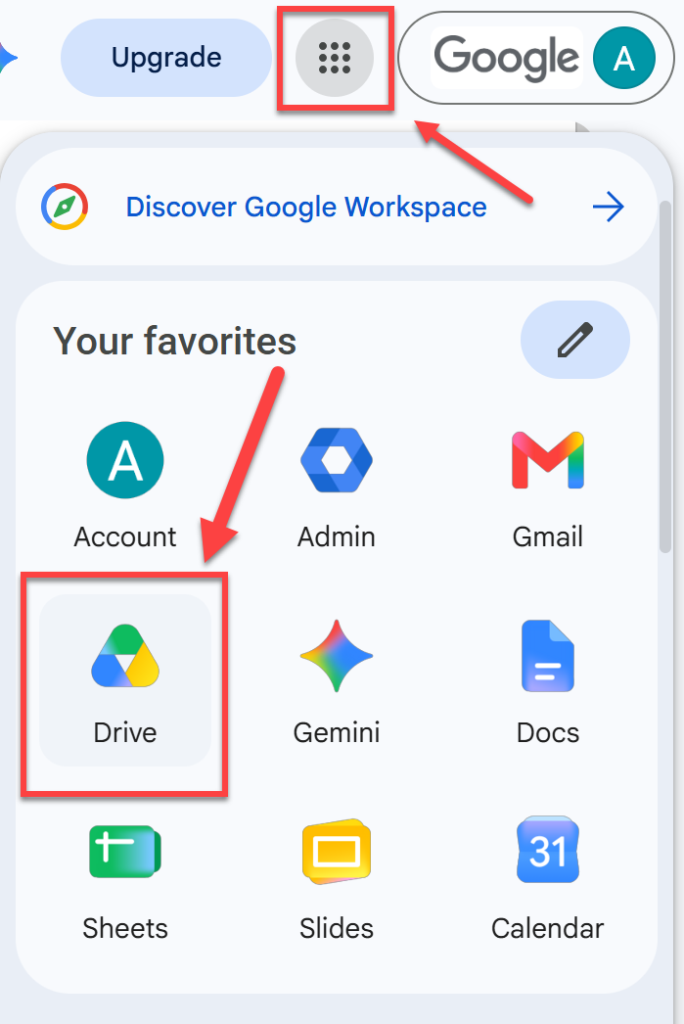
Find your file you added your email address to. YOU MUST use the file with YOUR email address in it.
Click on the 3 dots to the right.
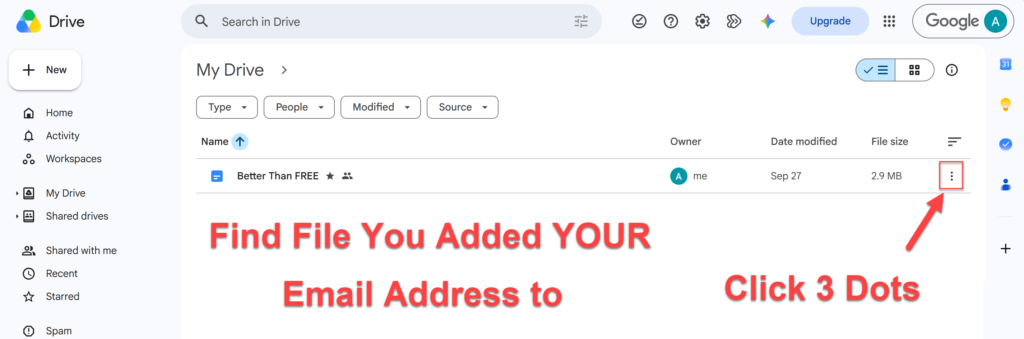
Click on Share then Copy link.
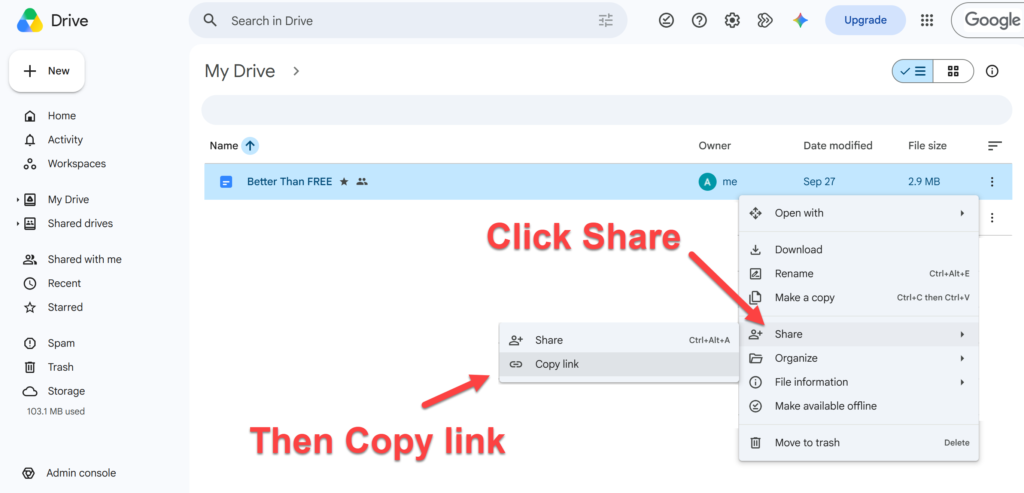
Now open your notepad or any note taking app and paste the link you just copied.
Right click and then click paste
Select your File ID.
Left click right after the slash after the /d/
Then drag your mouse to right before the next slash /
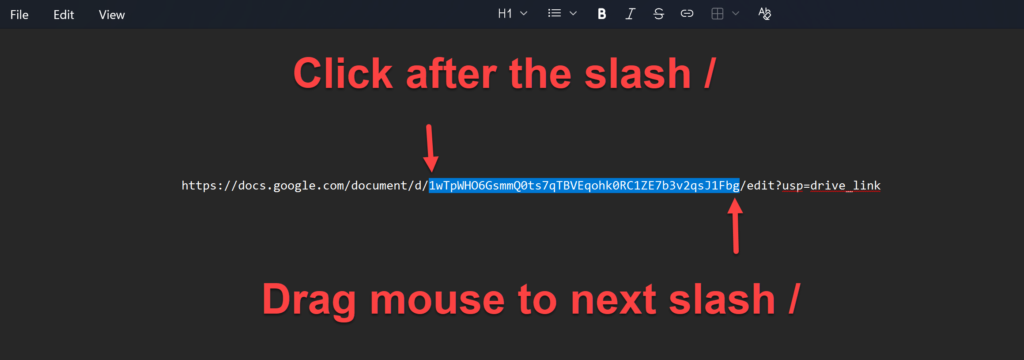
Once your file ID is highlighted and your cursor is over it, right click and then click copy.
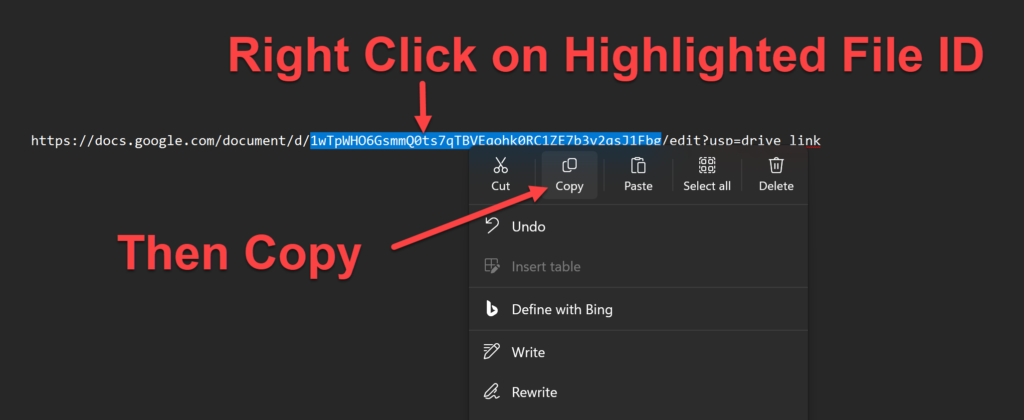
(Do NOT use the ID in this screenshot)
Next put your cursor a few lines down on the page.
Right click and then click paste
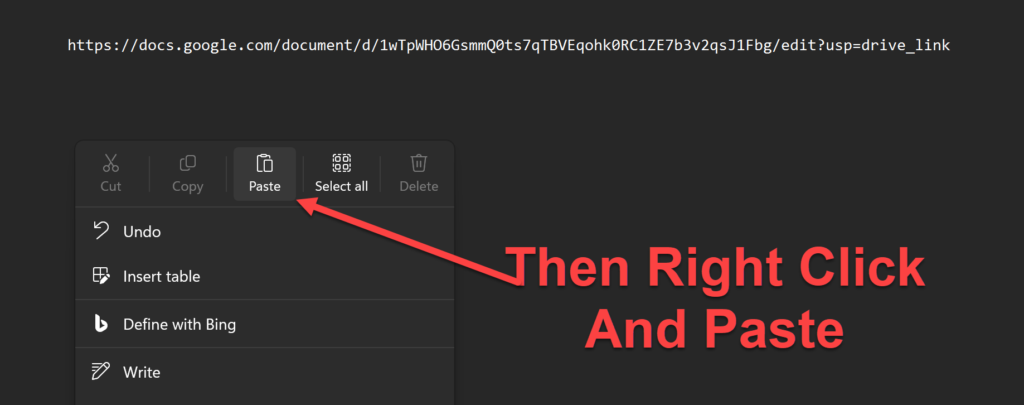
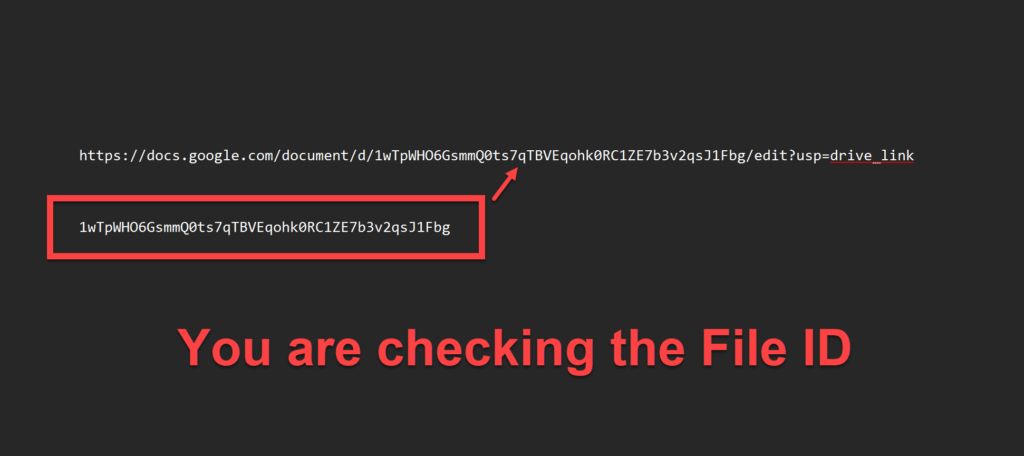
We are doing this to make sure you have the whole ID correct. Look closely at it to see it looks like the ID between the slashes.
Do NOT copy anything else to your clipboard until we finish the next part.
Keep this notepad open just in case you need to go back and grab the ID for the script.
If your Gmail account is still open in the browser, click the button below the next screenshot.
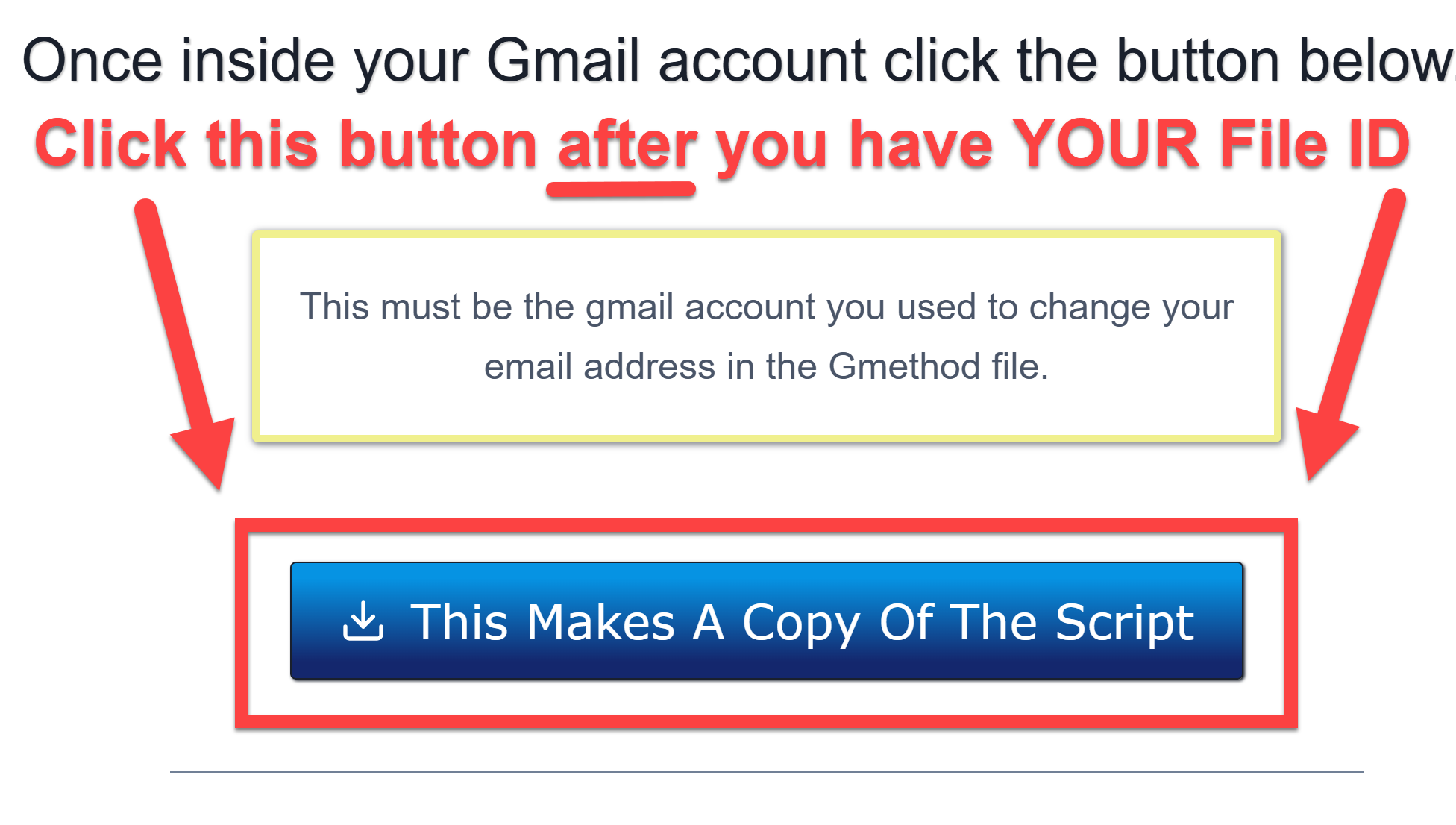
This must be the gmail account you used to change your email address in the Gmethod file.
Click on Make a copy (blue button).
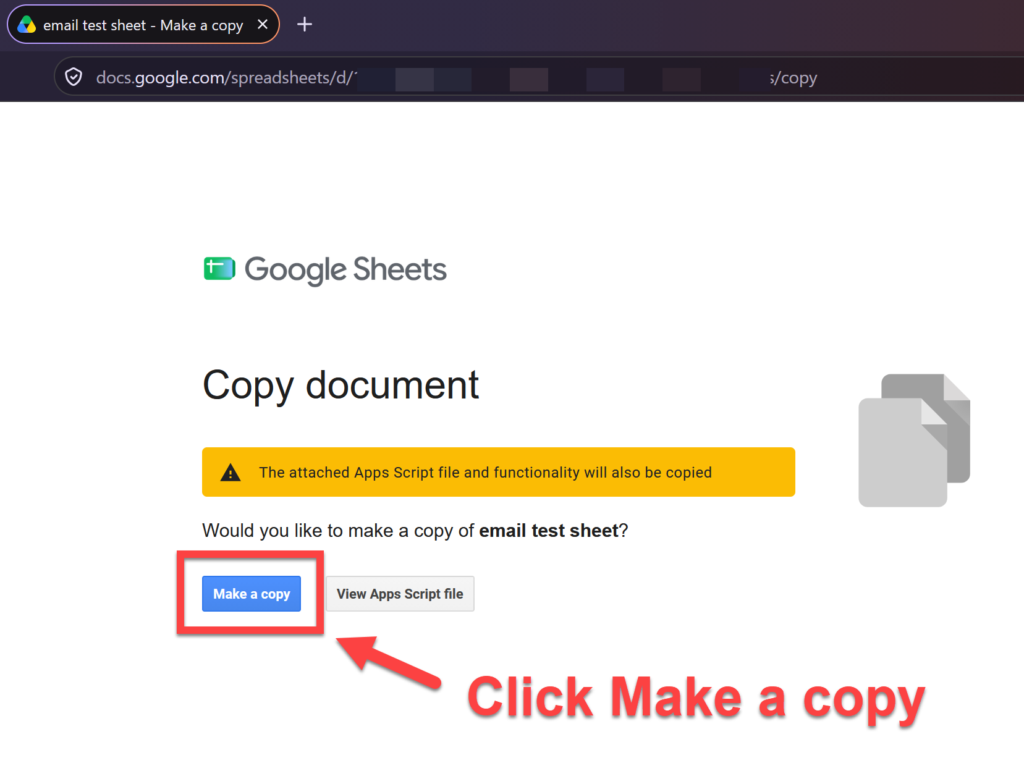
You will see your new sheet with the script to automate emailing your file.
This is where you will put the email leads you get from organic prospects. But not yet!
First, we need to put YOUR file ID in the script.
Click on extensions
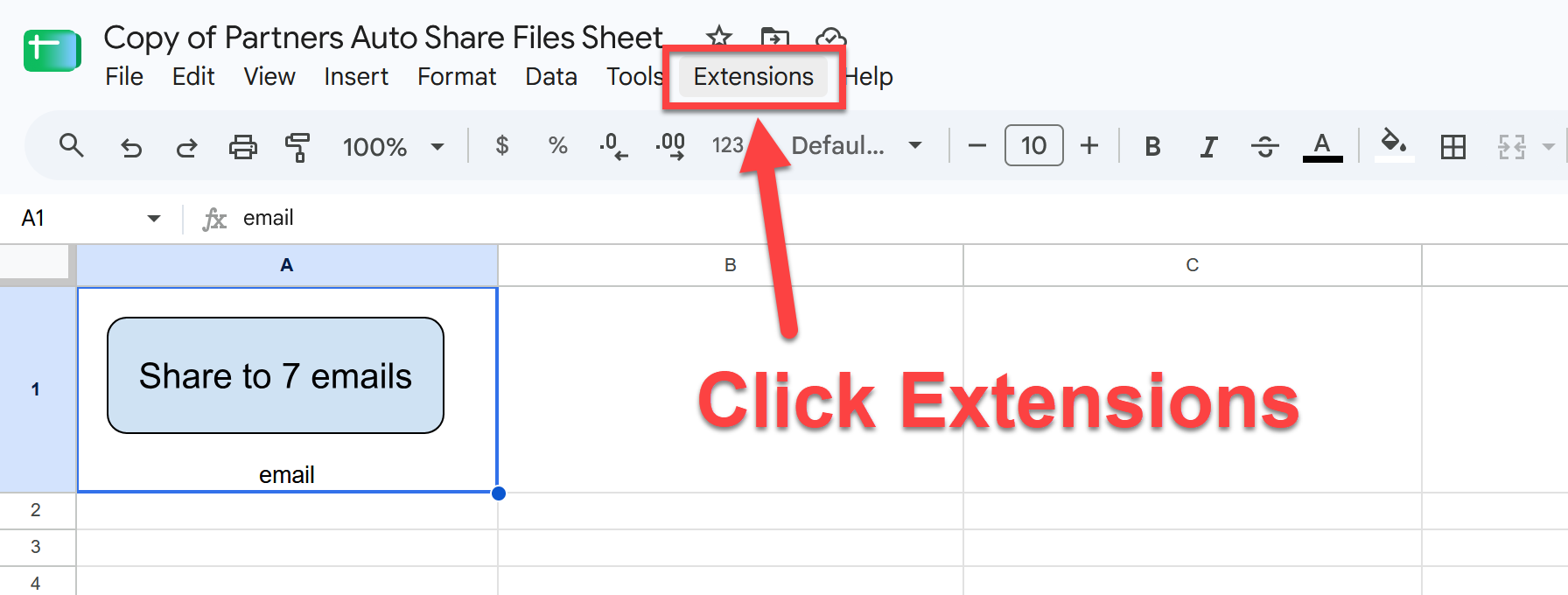
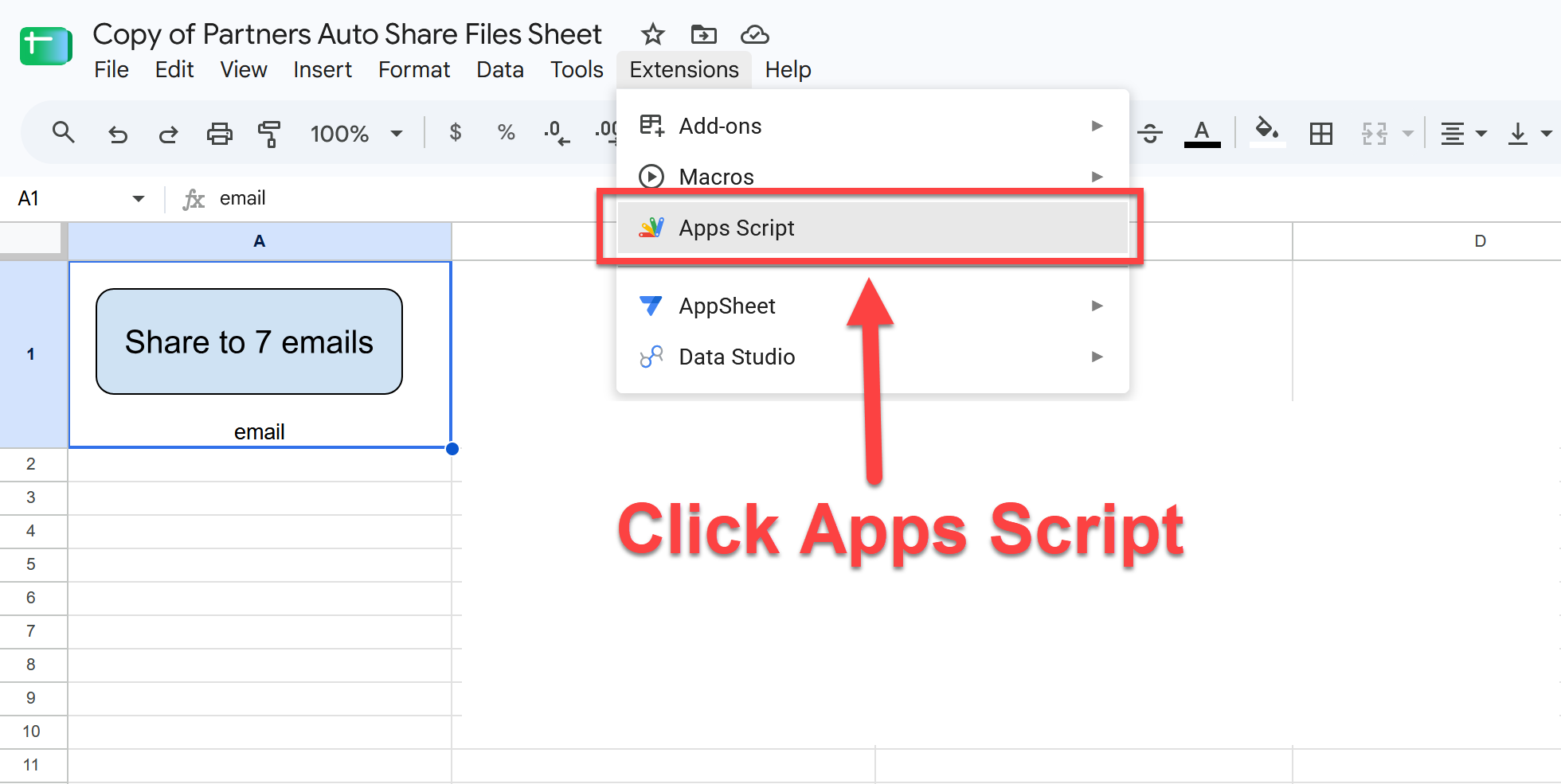
Next click on App Script.
Click on Got it (or the X)
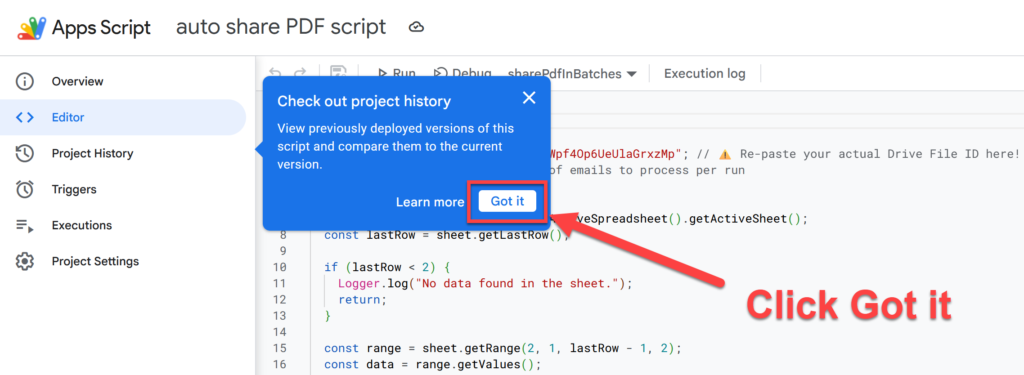
Where it says “Enter_File_ID_Here” you will put YOUR file ID NOT mine.
Highlight Enter_File_ID_Here in between the quotes ” “
Then right click and click paste.
Check to make sure it’s your ID we copied to the notepad earlier.
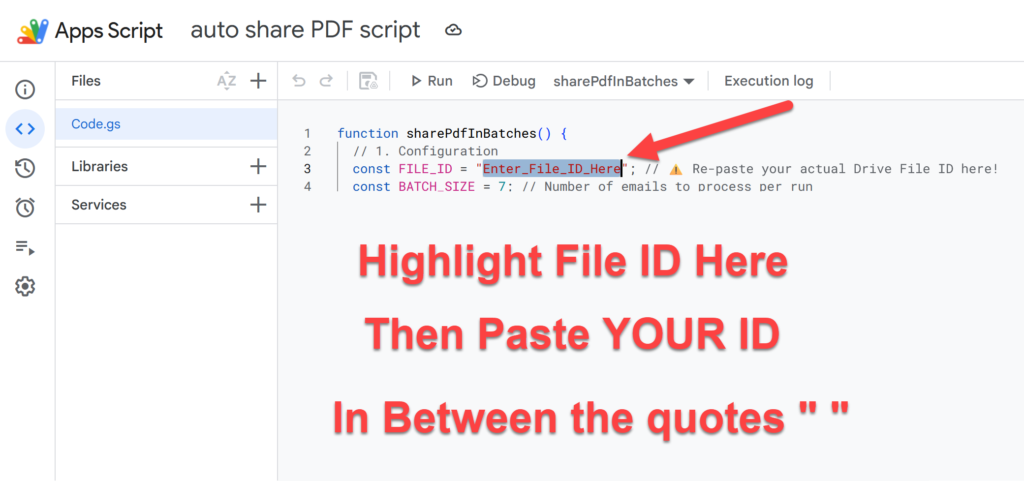
Click the little disk icon.
“Save project to Drive”
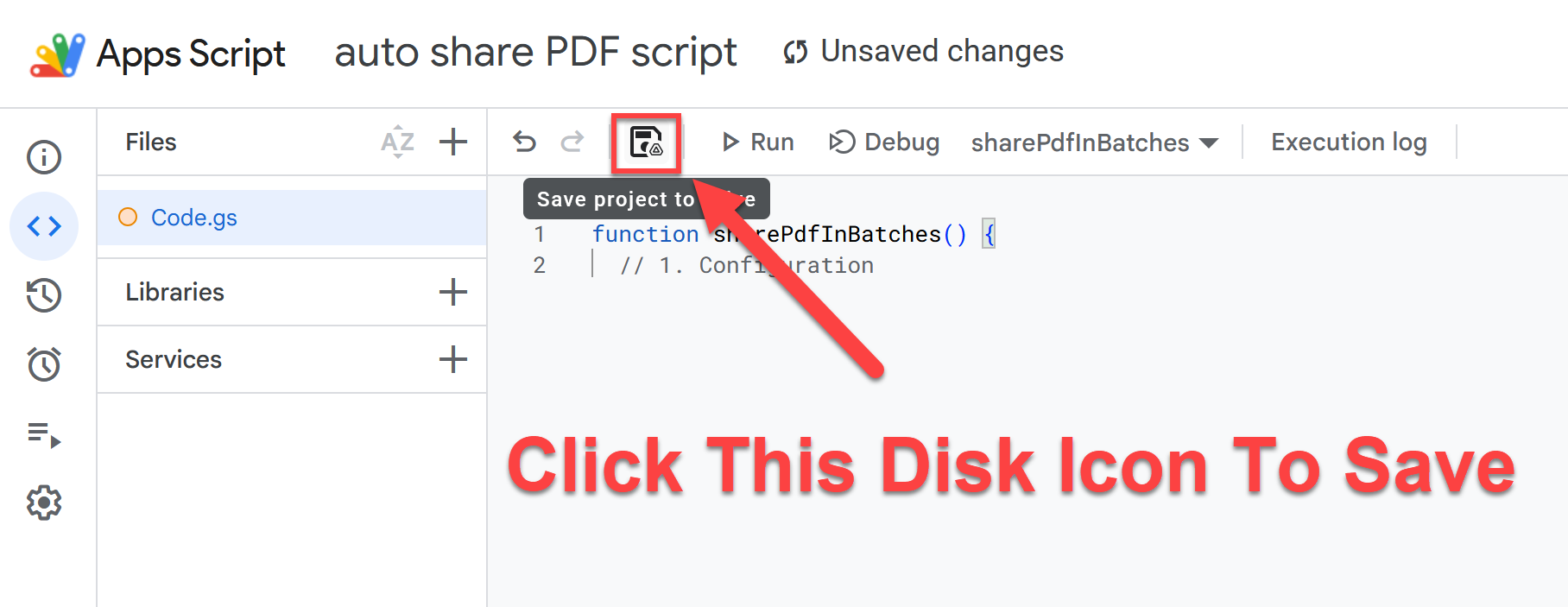
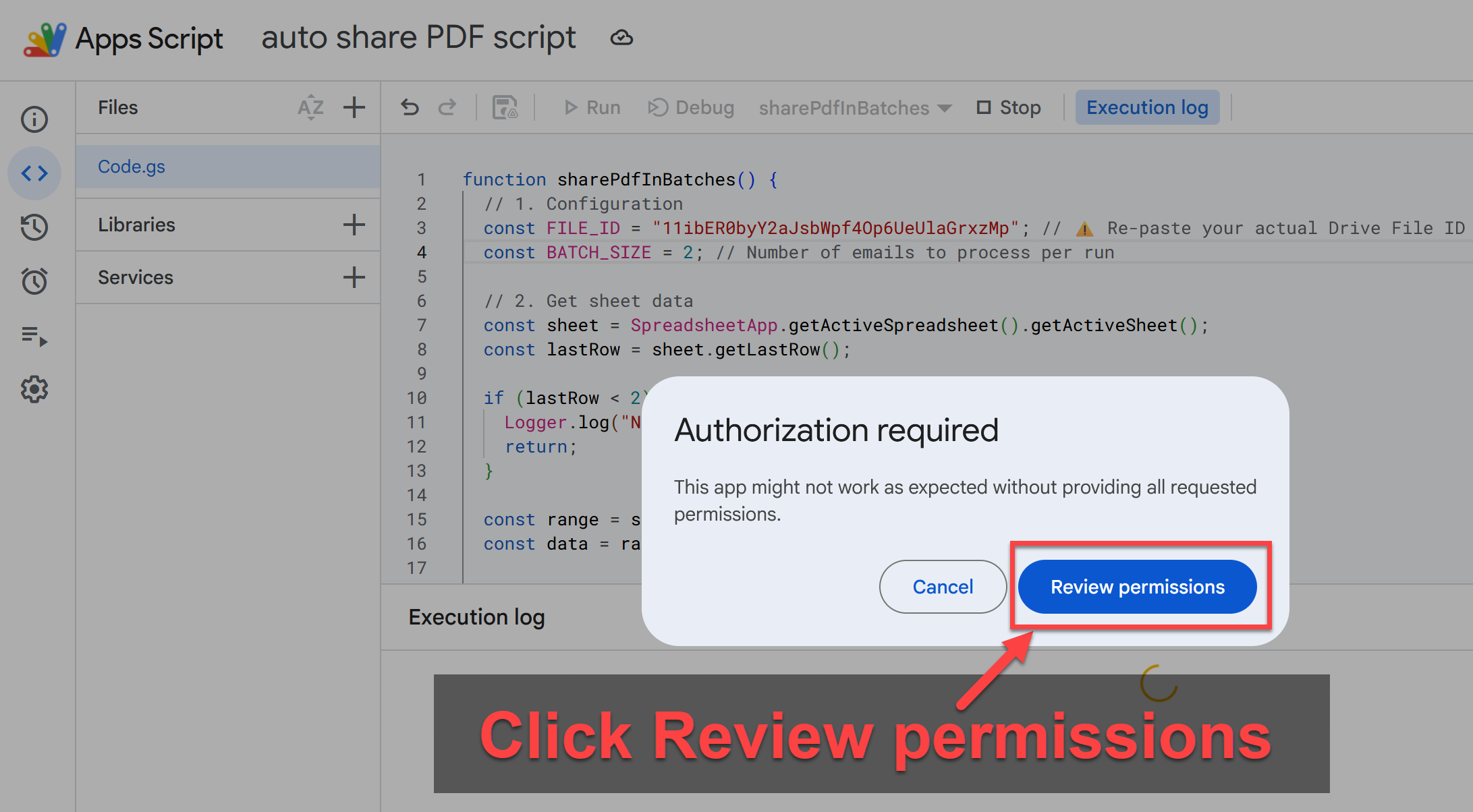
Click Run.
You will only do this once. This will not run the script right now.
(We are only giving permissions to run it later.)
Click Review permissions.
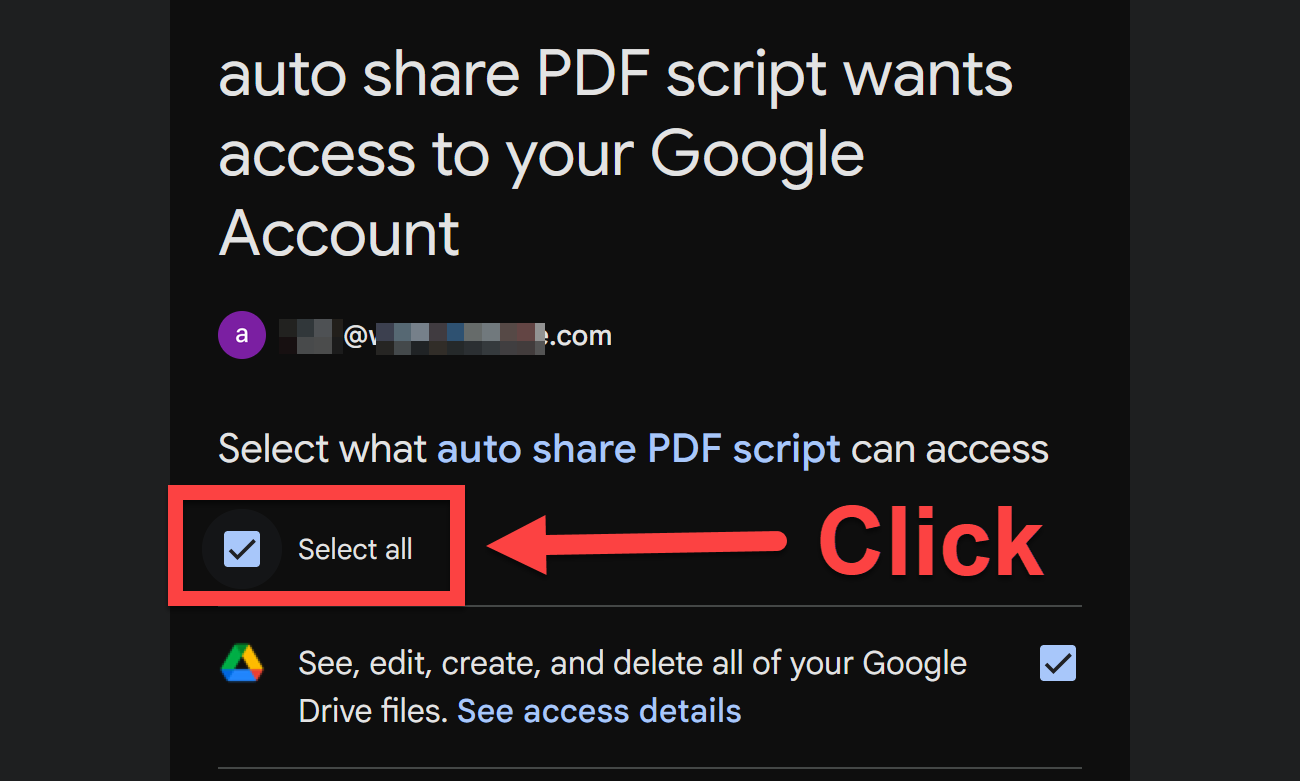
Check the Select all box.
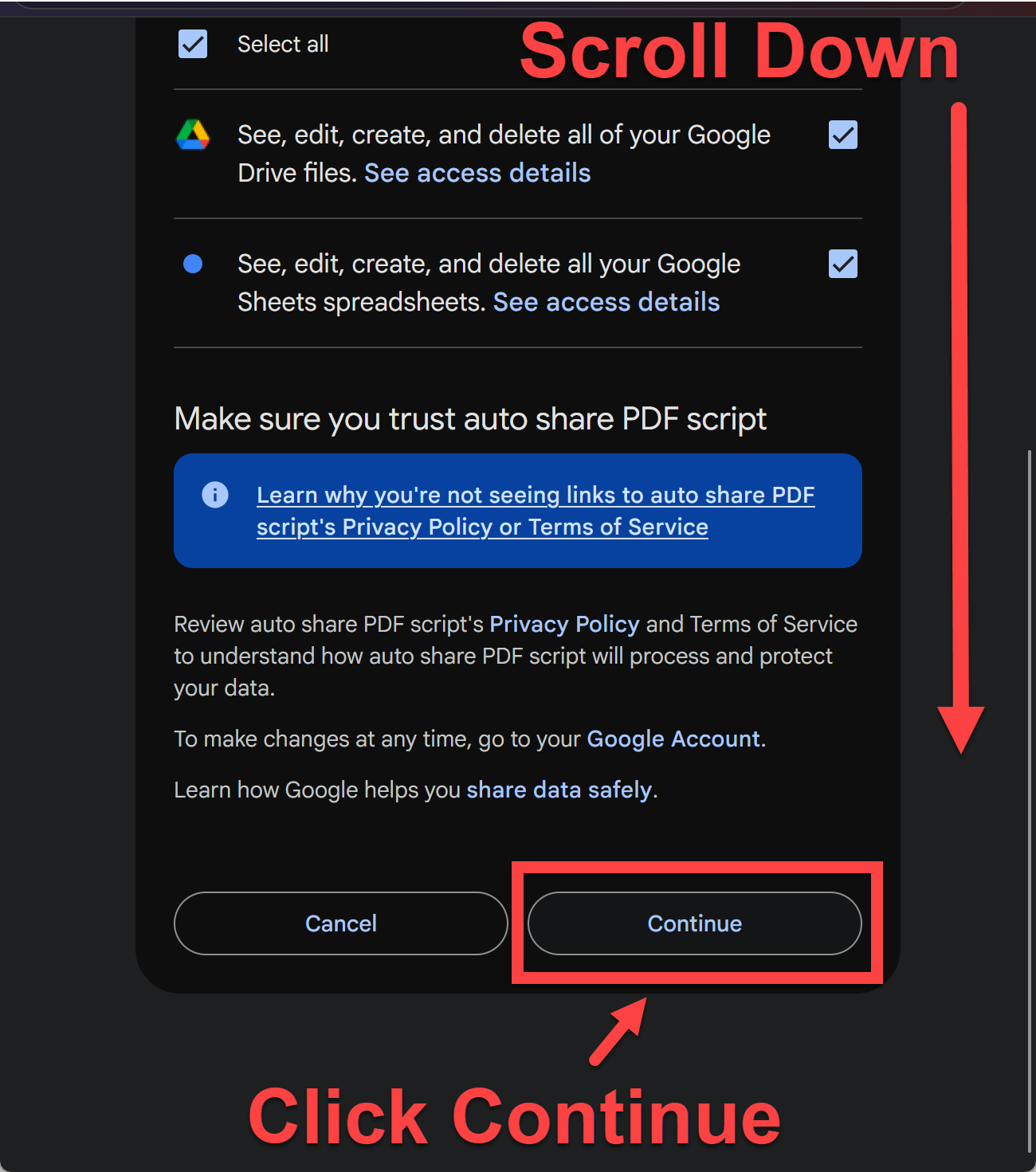
Scroll down then click the Continue button.
Go back to Drive.
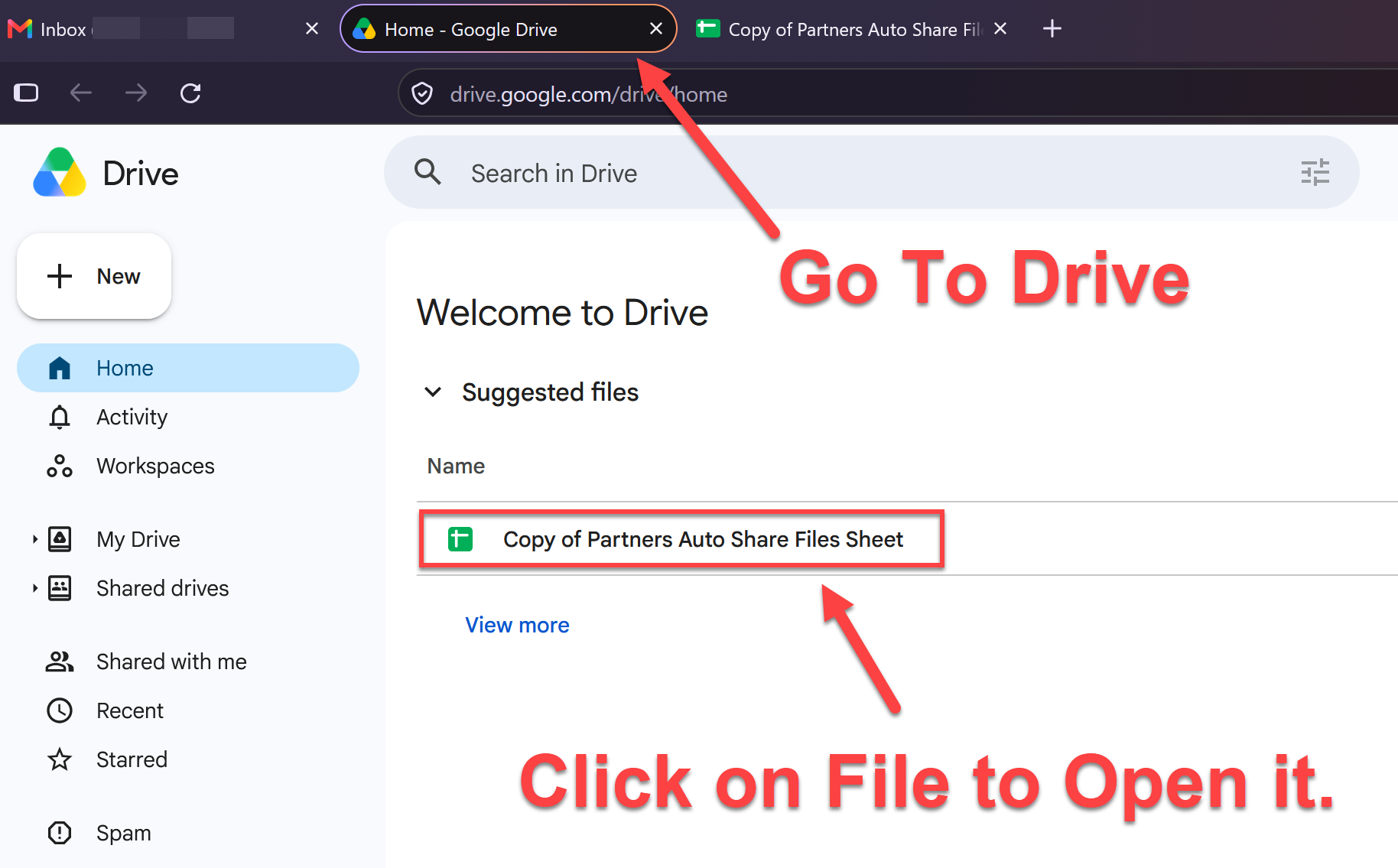
Now you can put your leads in this Google sheet.
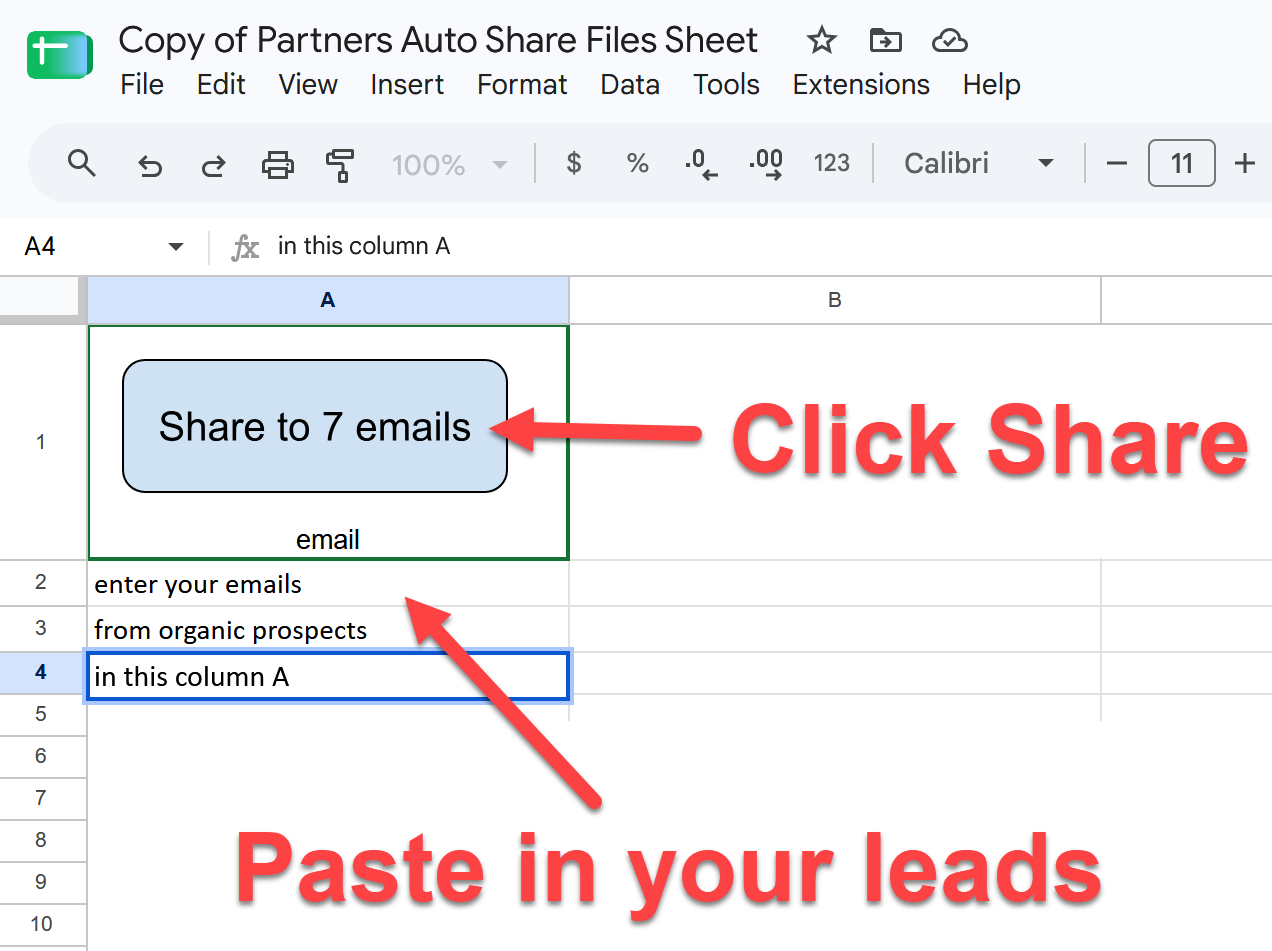
Click the button and it will automatically send 7 of your leads the G-method file with your email address.
You can put all your leads in this sheet each day but just click the button once ever 30 minutes to an hour. This will send 7 at a time to make it seem natural.
If you just sent to all your leads at once Google will see it as an automation and may stop sending your emails.
Mr. Rude
If you have any questions or need any help just email me.
The key is to stay consistent and send the file every day when you get your leads from organic prospects.
Automated
file Sending:
How to Automatically Email
Your G-Method File
(WITHOUT an Autoresponder)
WARNING: You must be
logged into Gmail.
First, we will get your ID from your file.
This is the file you added YOUR email address to. The file we send to our leads.
After we get the ID we will add it to a special Google app script.
This script will automate sending your file to your leads with a click of a button.
Inside your Gmail account click on the 9 dots to see your Drive app.
Click on Drive
Find your file you added your email address to. YOU MUST use the file with YOUR email address in it.
Click on the 3 dots to the right.
Click on Share then Copy link.
Now open your notepad or any note taking app and paste the link you just copied.
Right click and then click paste
Select your File ID.
Left click right after the slash after the /d/
Then drag your mouse to right before the next slash /
Once your file ID is highlighted and your cursor is over it, right click and then click copy.
(Do NOT use the ID in this screenshot)
Next put your cursor a few lines down on the page.
Right click and then click paste
We are doing this to make sure you have the whole ID correct. Look closely at it to see it looks like the ID between the slashes.
Do NOT copy anything else to your clipboard until we finish the next part.
Keep this notepad open just in case you need to go back and grab the ID for the script.
If your Gmail account is still open in the browser, click the button below the next screenshot.
This must be the gmail account you used to change your email address in the Gmethod file.
Click on Make a copy (blue button).
You will see your new sheet with the script to automate emailing your file.
This is where you will put the email leads you get from organic prospects. But not yet!
First, we need to put YOUR file ID in the script.
Click on extensions
Next click on App Script.
Click on Got it (or the X)
Where it says “Enter_File_ID_Here” you will put YOUR file ID NOT mine.
Highlight Enter_File_ID_Here in between the quotes ” “
Then right click and click paste.
Check to make sure it’s your ID we copied to the notepad earlier.
Click the little disk icon.
“Save project to Drive”
Click Run.
You will only do this once.
This will not run the script right now.
(We are only giving permissions to run it later.)
Click Review permissions.
Check the Select all box.
Scroll down then click the Continue button.
Go back to Drive.
Now you can put your leads in this Google sheet.
Click the button and it will automatically send 7 of your leads the G-method file with your email address.
You can put all your leads in this sheet each day but just click the button once ever 30 minutes to an hour. This will send 7 at a time to make it seem natural.
If you just sent to all your leads at once Google will see it as an automation and may stop sending your emails.