Automate
Email Reply:
How to Automate Email
WITHOUT any Autoresponders
WARNING: You must ONLY be logged into 1 Gmail.
If you use more than one gmail account log out
of all of them and log back into only one.
You will get an error message if you are logged into more than one gmail account. If you only use one don’t worry about it.
If you only use one account skip this next part by clicking here.
Make sure you have your correct passwords for all your Gmail accounts before you log out.
This will log you out of all your accounts. Then you log back in to the account you will be using to send emails.
If you don’t want to log out of all your accounts open an incognito window and log into the Gmail account you want to use.
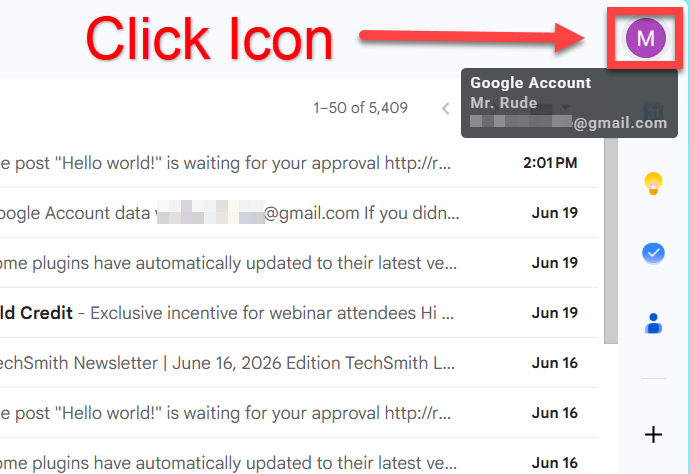
Go to your account icon (top right).
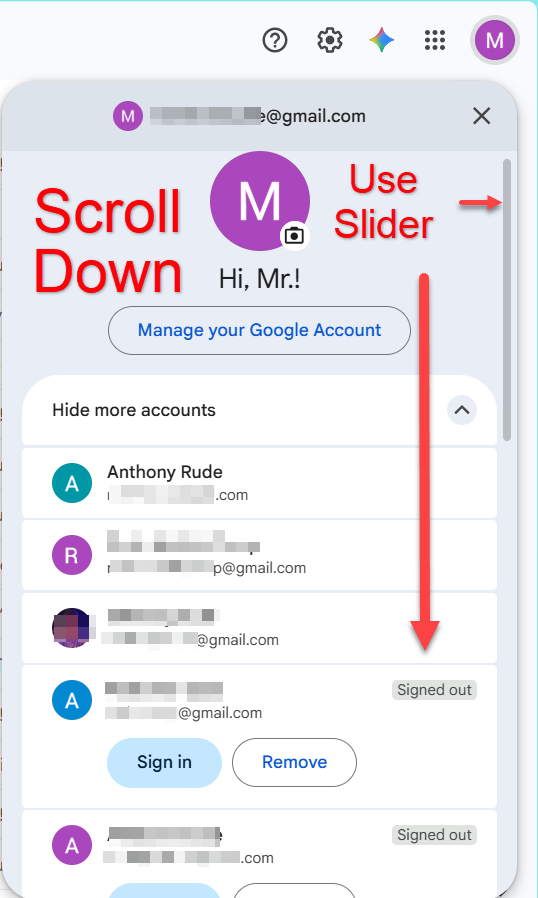
Scroll down.
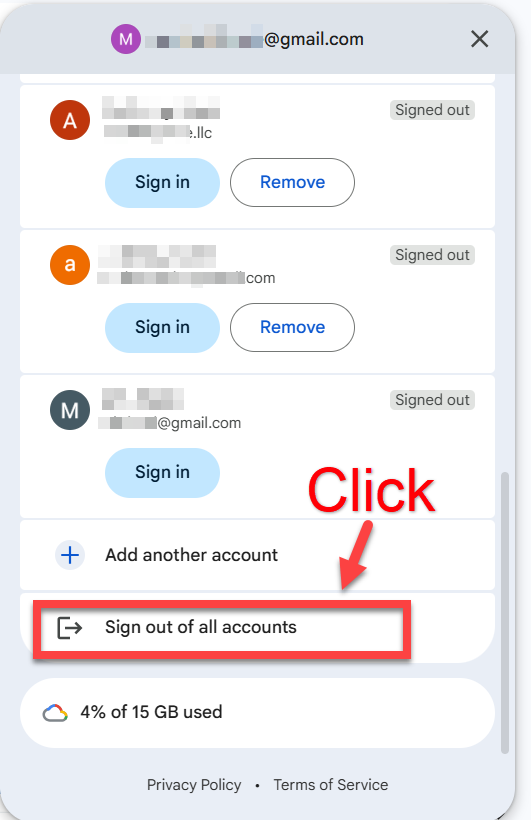
Click Sign out of all accounts.
Now sign back into the account you will be using to send the Google drive file you got from:
arudes.com/Zero-Traffic
Now we will set up your Gmail to automatically email back anyone who sends you an email asking for the “gmethod” using the free version of this cool app.
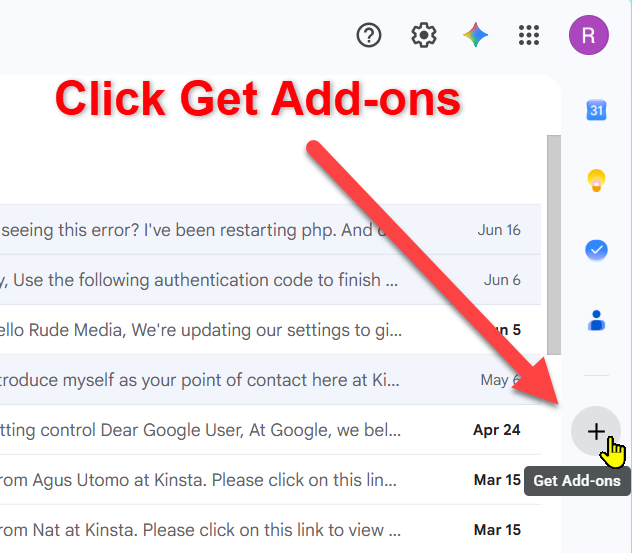
In your Gmail look for a PLUS sign (+) on the right side of the page.
This will bring you to the Google Workspace Marketplace.
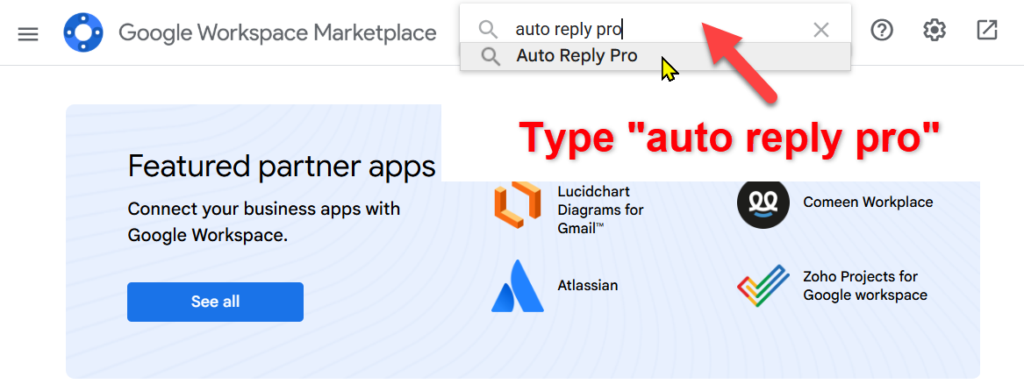
In the search box type the words “auto reply pro”
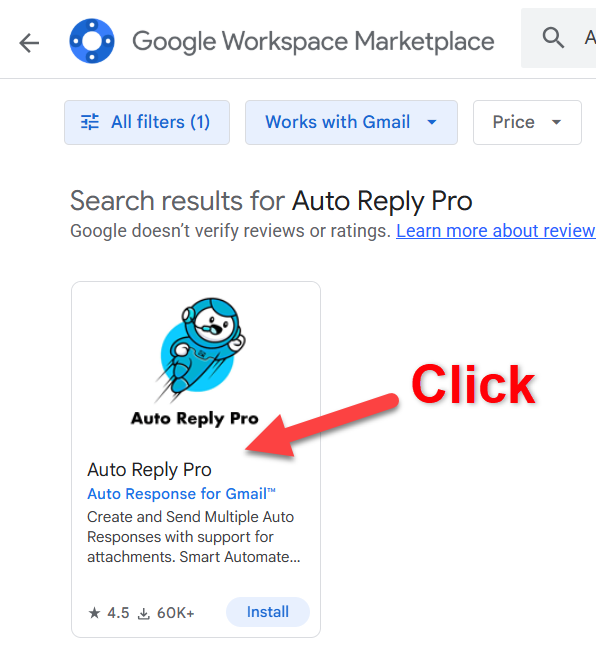
Click on Auto Reply Pro.
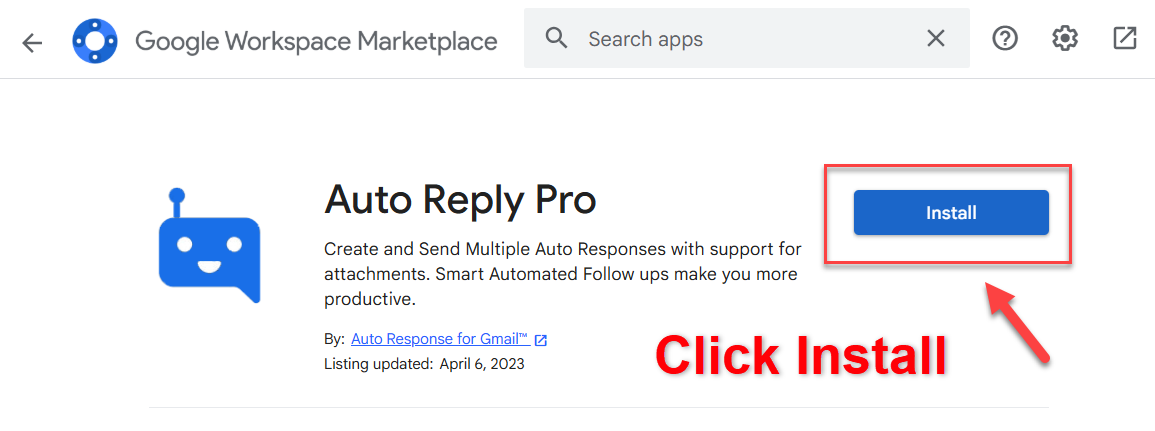
Click Install.
Click continue.
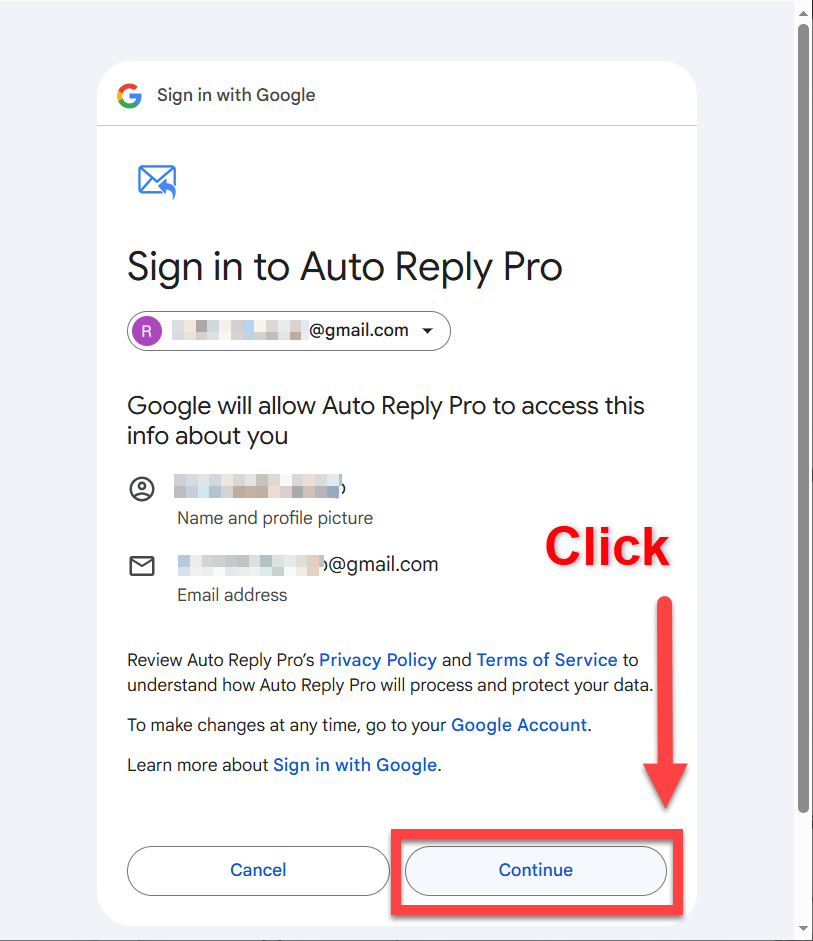
Check the select all box then scroll down.
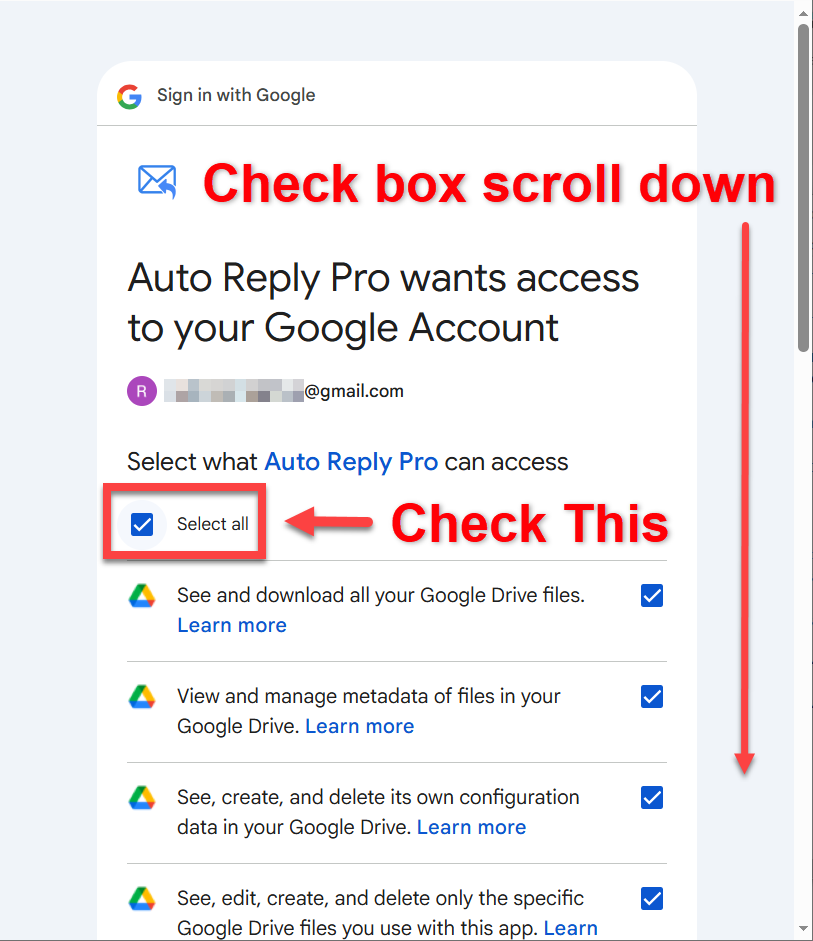
Scroll till you see continue and click it.
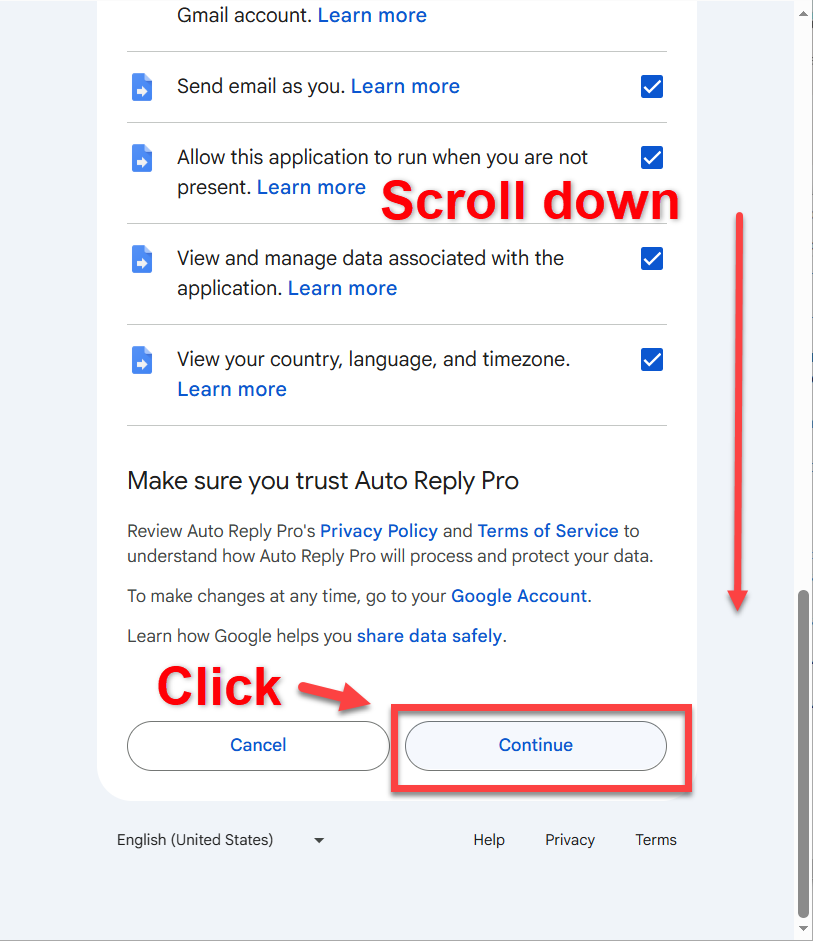
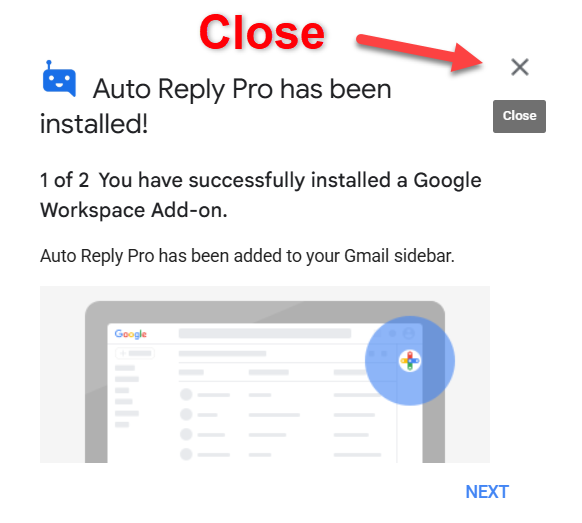
Close this message.
Click the 9 dots (Google apps).
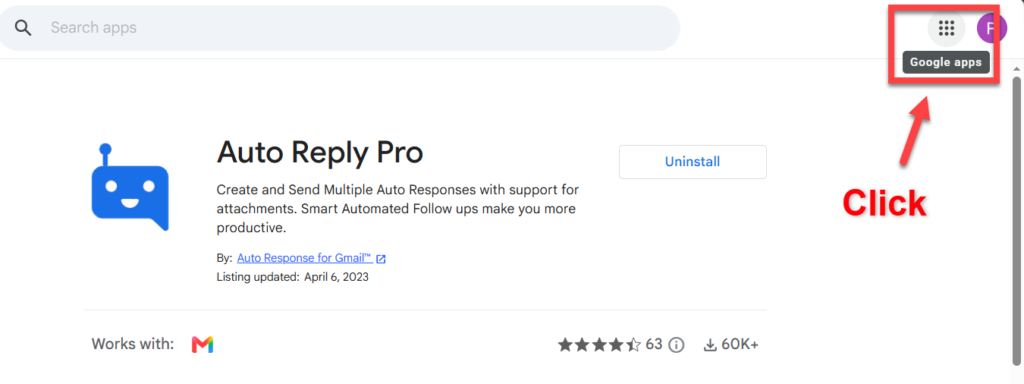
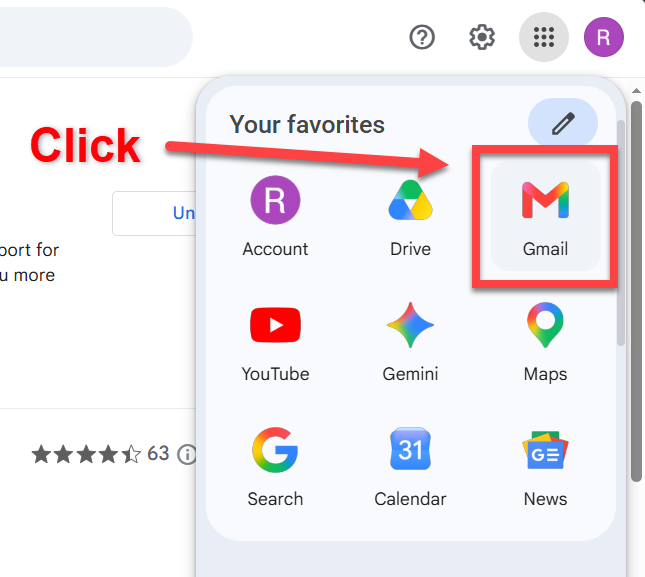
Click on the Gmail app.
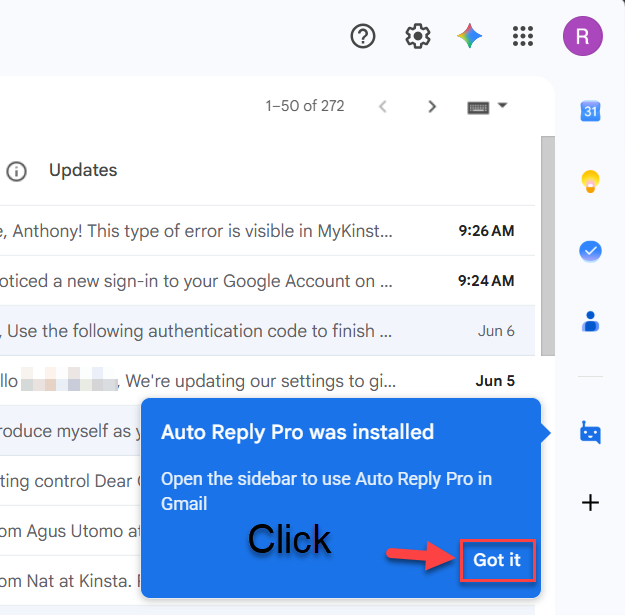
You will see this message. Click Got it
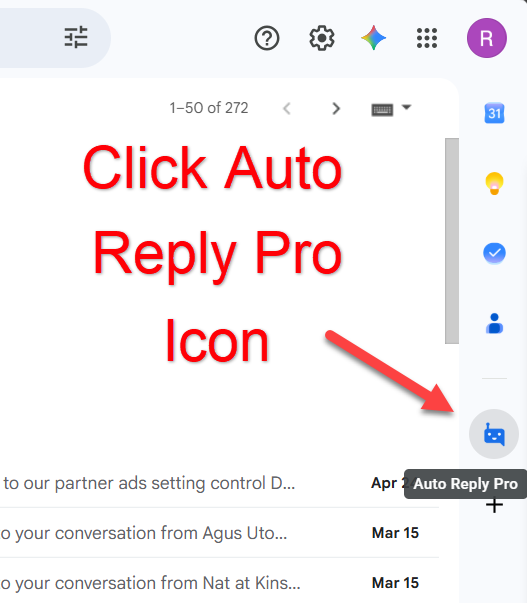
Now you will have a new little icon. Click it.
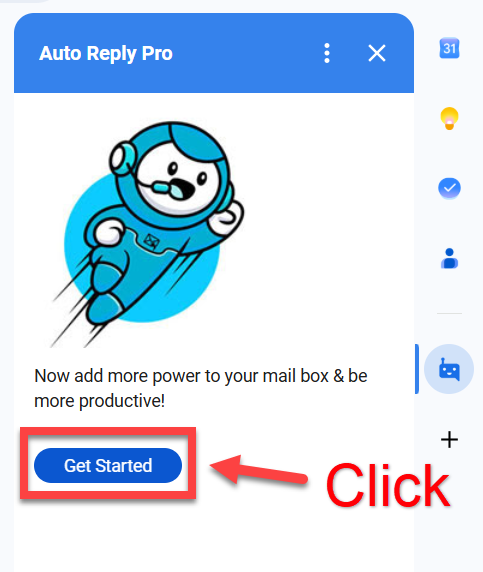
Click Get Started.
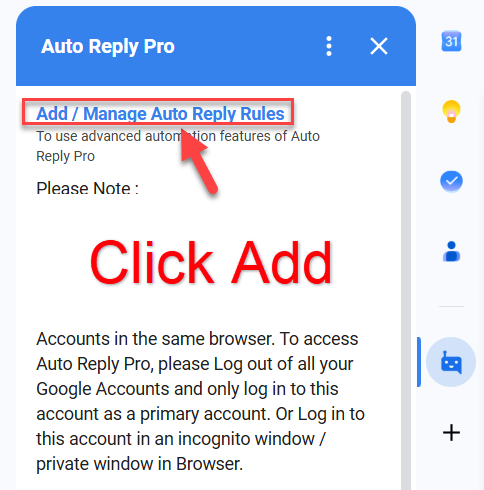
Click Add / Manage Auto Reply Rules
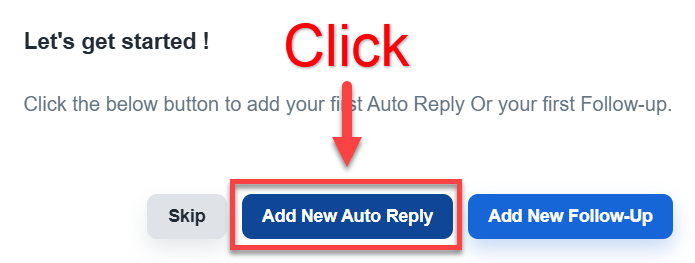
Click Add New Auto Reply.
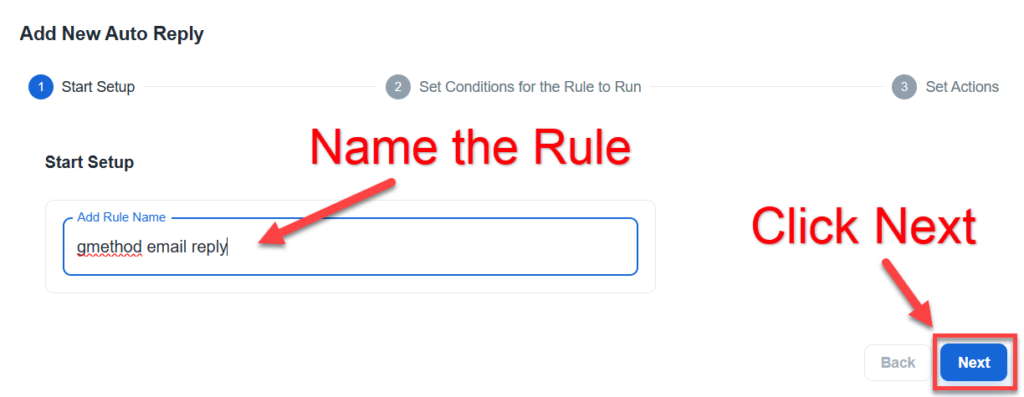
Name the Rule
Click on…
“Any email received that contains any of these words in “Subject field”.
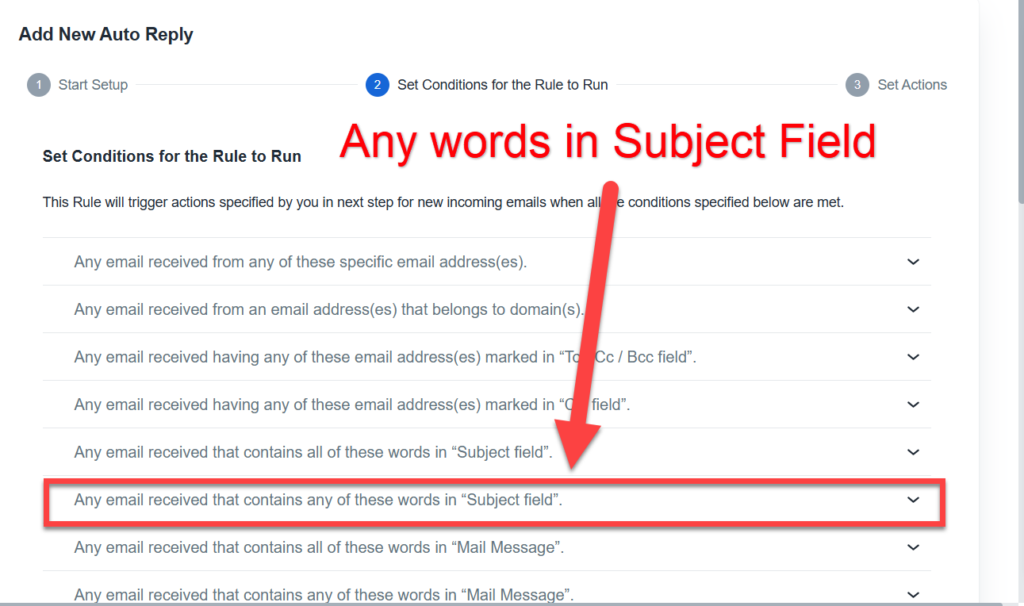
Add the word gmethod in the (Add word) field then click Add.
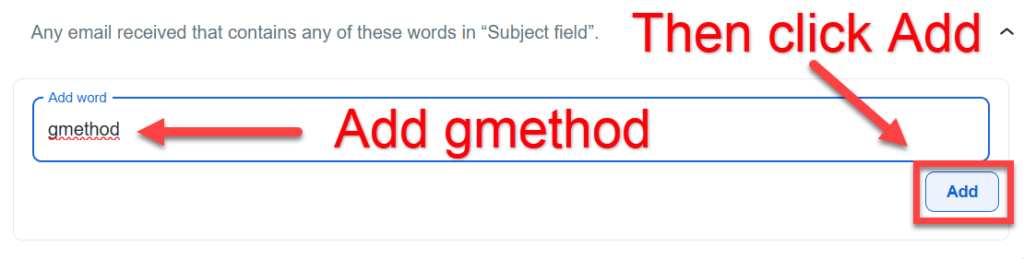
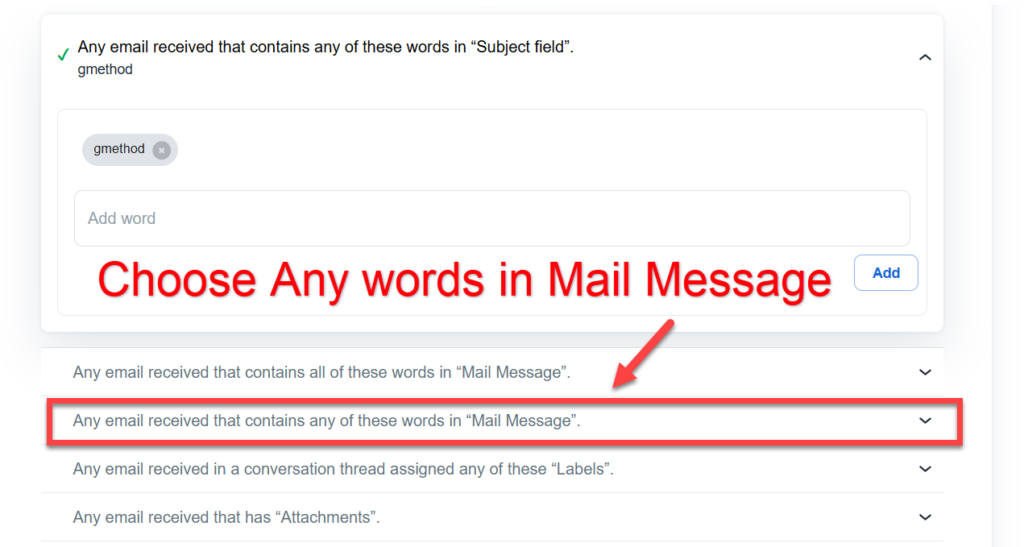
Next click on…
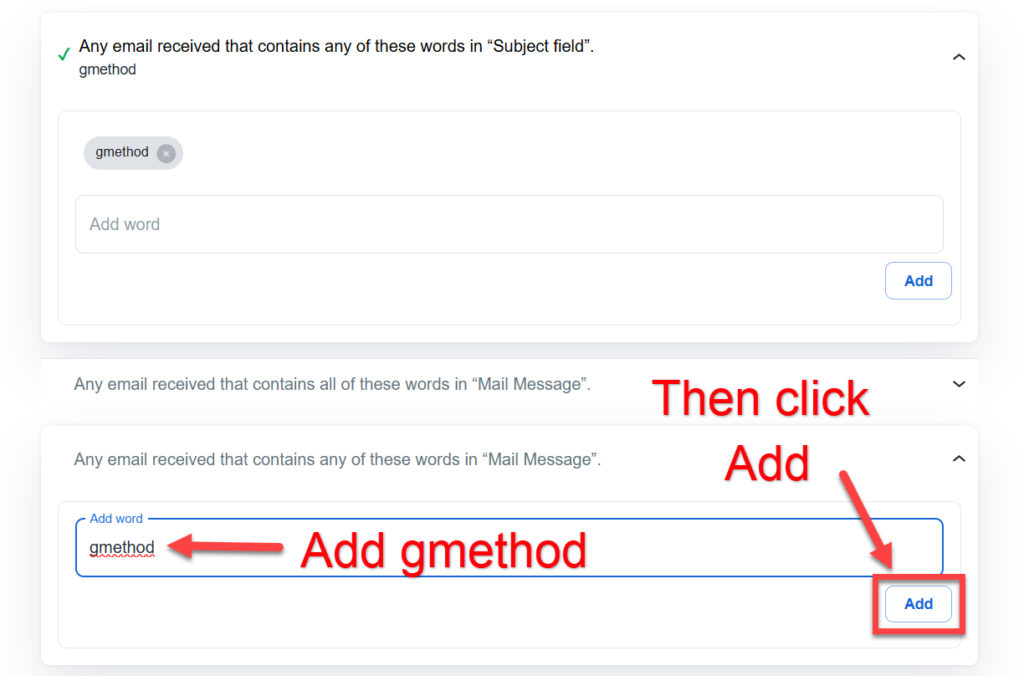
“Any email received that contains any of these words in “Mail Message”.
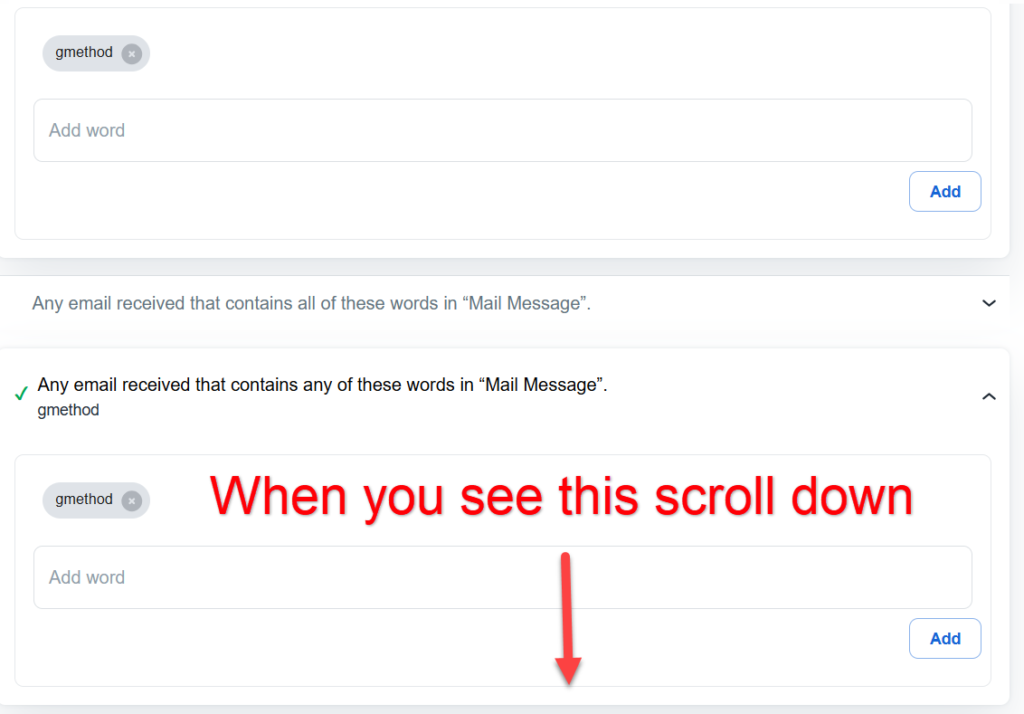
Add the word gmethod in the field and click Add.
When you see this message scroll down.
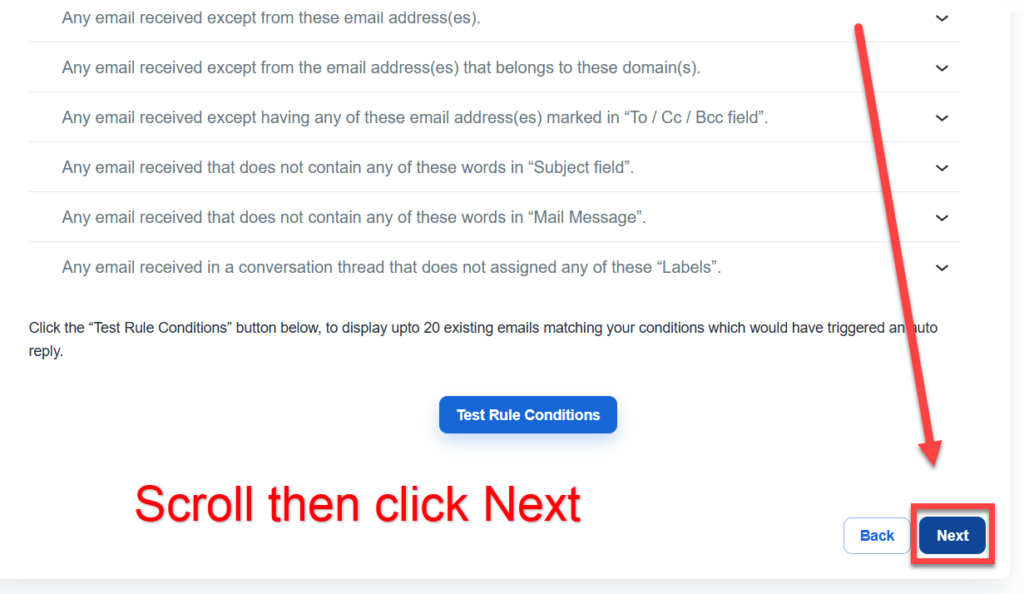
When you get to the bottom click Next.
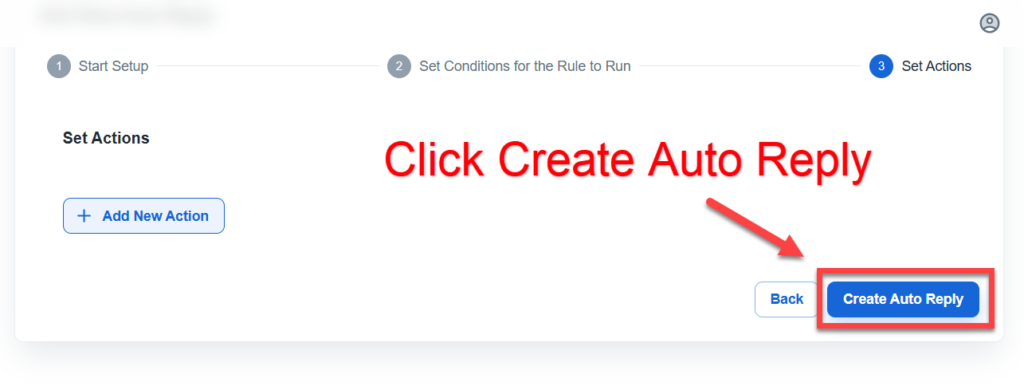
Click Create Auto Reply.
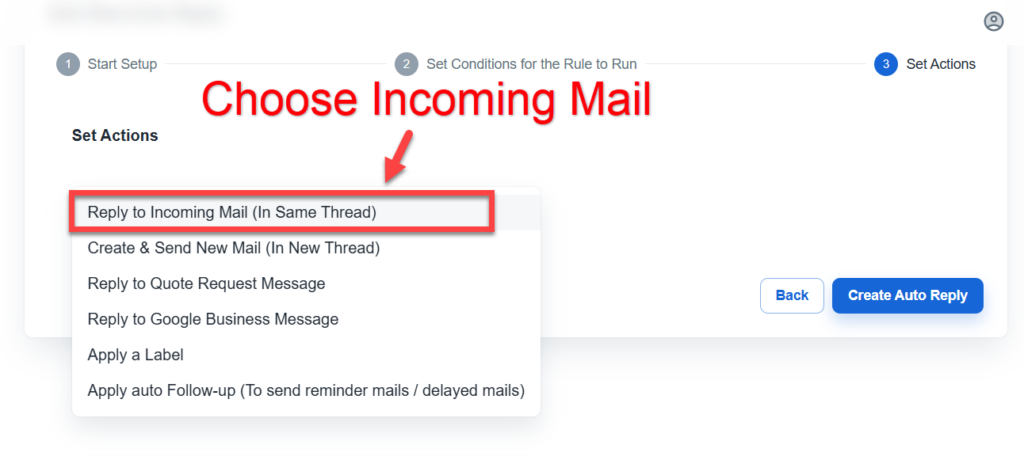
Choose “Reply to Incoming Mail (In Same Thread)
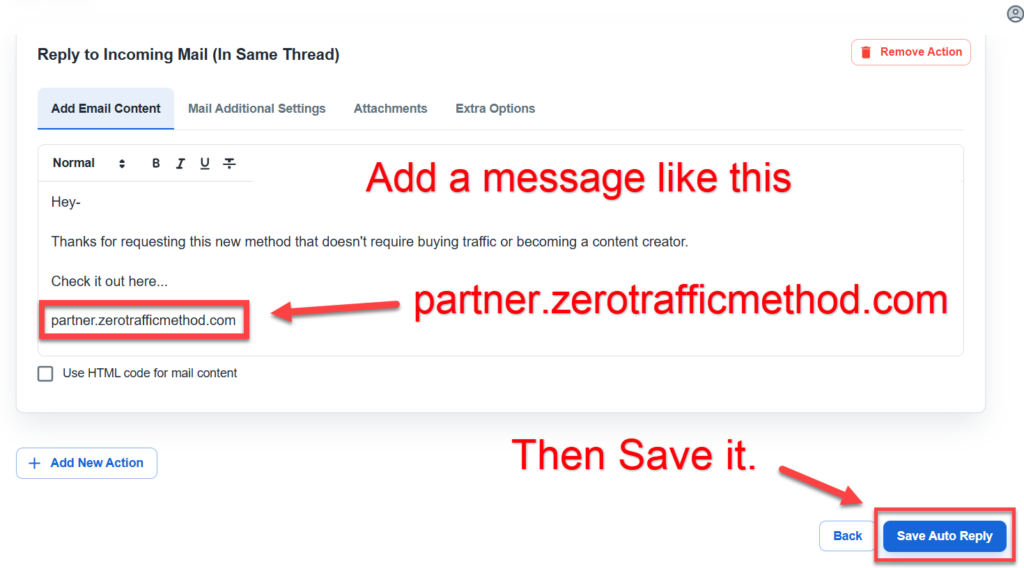
Here is where you write the email that will automatically be sent when someone sends you and email with the word “gmethod”.
You can write your own message like mine but make sure you put the exact domain name:
partner.zerotrafficmethod.com
Then save it.
You will be sent to the dashboard for Auto Reply Pro.
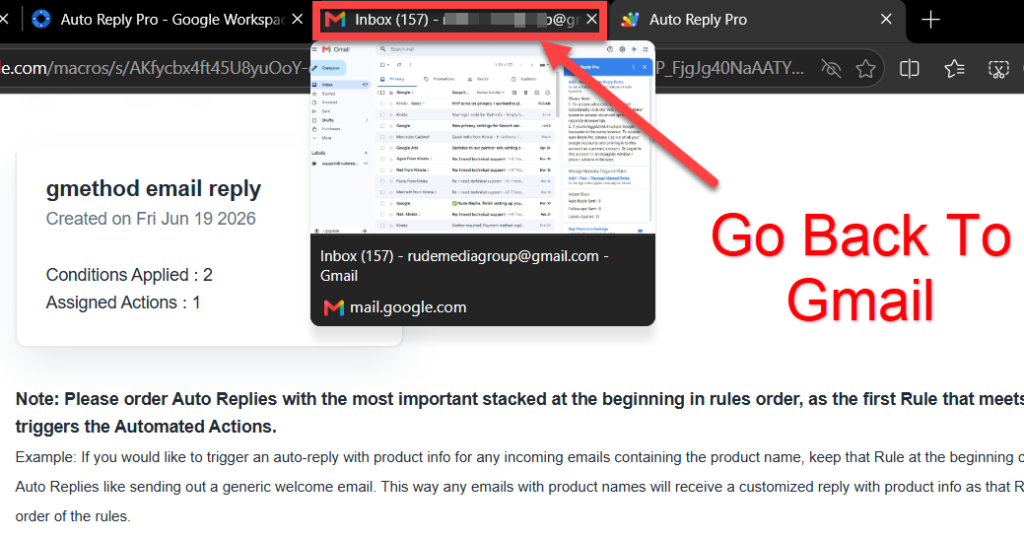
Go back to your Gmail account and test out this app.
Have someone send you an email with the word gmethod or send it to yourself from a different email address.
They should get your automated message.
If you have any problems go back and see if it’s set up right. Or email support: help@bitqueues.com
Here is the user guide:
https://www.bitqueues.com/user-manual-guide-auto-reply-pro-gmail-gsuite-add-on/
Mr. Rude
Automated
Email Reply:
How to Automate Email
WITHOUT Autoresponders
WARNING: You must ONLY be logged into 1 Gmail.
If you use more than one gmail account log out
of all of them and log back into only one.
You will get an error message if you are logged into more than one gmail account. If you only use one don’t worry about it.
If you only use one account skip this next part by clicking here.
Make sure you have your correct passwords for all your Gmail accounts before you log out.
This will log you out of all your accounts. Then you log back in to the account you will be using to send emails.
If you don’t want to log out of all your accounts open an incognito window and log into the Gmail account you want to use.
Go to your account icon (top right).
Scroll down.
Click Sign out of all accounts.
Now sign back into the account you will be using to send the Google drive file you got from:
arudes.com/Zero-Traffic
Now we will set up your Gmail to automatically email back anyone who sends you an email asking for the “gmethod” using the free version of this cool app.
In your Gmail look for a PLUS sign (+) on the right side of the page.
This will bring you to the Google Workspace Marketplace.
In the search box type the words “auto reply pro”
Click on Auto Reply Pro.
Click Install.
Click continue.
Check the select all box then scroll down.
Scroll till you see continue and click it.
Close this message.
Click the 9 dots (Google apps).
Click on the Gmail app.
You will see this message. Click Got it
Now you will have a new little icon. Click it.
Click Get Started.
Click Add / Manage Auto Reply Rules
Click Add New Auto Reply.
Name the Rule
Click on…
“Any email received that contains any of these words in “Subject field”.
Add the word gmethod in the (Add word) field then click Add.
Next click on…
“Any email received that contains any of these words in “Mail Message”.
Add the word gmethod in the field and click Add.
When you see this message scroll down.
When you get to the bottom click Next.
Click Create Auto Reply.
Choose “Reply to Incoming Mail (In Same Thread)
Here is where you write the email that will automatically be sent when someone sends you and email with the word “gmethod”.
You can write your own message like mine but make sure you put the exact domain name:
partner.zerotrafficmethod.com
Then save it.
You will be sent to the dashboard for Auto Reply Pro.